
bkp_target_console.exe is the Windows program for operators of backup servers. It connects through the Target API (HTTPS, port 9991) to one or more bkp_target and shows at a glance how they are doing: storage and forecast, running sessions, stores and runs, the jobs of the target scheduler, accesses, releases, settings, the history and the log. With an admin token the server can also be controlled and set up through it, without opening a shell.
As with the management console, the program itself needs no administrator rights; what it may do is decided by the token, and bkp_target checks every change with the same rules as on the command line before taking it over.
15.1 Installation#
The console is the component tconsole (“Target console”) of aegisgrid-setup.exe, independent of agent and job scheduler. For a pure management workstation tick only core and target console under “Custom”. Afterwards the start menu has the entry “AegisGrid Target Console” under “AegisGrid”; if the component is deselected later, it disappears again.
without a window, for example for software distribution
aegisgrid-setup.exe --silent --accept-eula --components core,tconsole15.2 Preparing the backup server#
The Target API is off by default. The easiest way is to let the setup turn it on when setting up the server (Chapter 4, “Management through the Target API”):
bkp_setup --silent --accept-eula --preset server --configure-server --server-storage /srv/backups --enable-target-apiThe report at the end names port, fingerprint of the API certificate and the token of the access target-konsole with the role admin. The token appears only this one time; it belongs in the console and nowhere else. On a server already set up it works by hand:
bkp_target --api-init
bkp_target --api-enable
bkp_target --api-token-add konsole-admin --role admin
systemctl reload bkp_target
bkp_target --api-info # address and fingerprint for the console| Role | What the console can do with it |
|---|---|
read | View everything: overview, sessions, stores and runs, jobs, accesses (without keys), releases, settings, history, log. Buttons for changing are greyed out. |
admin | In addition end sessions, check and prune stores, change retention, delete runs, create, change, start and stop jobs, create and delete accesses, change hosted.conf and bkp_target.cfg, reload and restart the service. |
Three switches in the section [api] of /etc/bkp/bkp_target.cfg also limit an admin token: allow-config-write (change files, yes by default), allow-delete (delete runs, prune, change retention; no by default) and allow-exec (jobs that start any program; no by default). What is locked this way the console shows as “only on the server”. Open port 9991/TCP in the firewall only for the operators' machines.
Caution: An admin token of the Target API is far-reaching access to the backup server: it can create accesses for clients, change settings and restart the service. Treat it like an administrator password, issue tokens with --role read for observing and invalidate tokens no longer needed at once with bkp_target --api-token-remove <name>.
15.3 Adding a server#
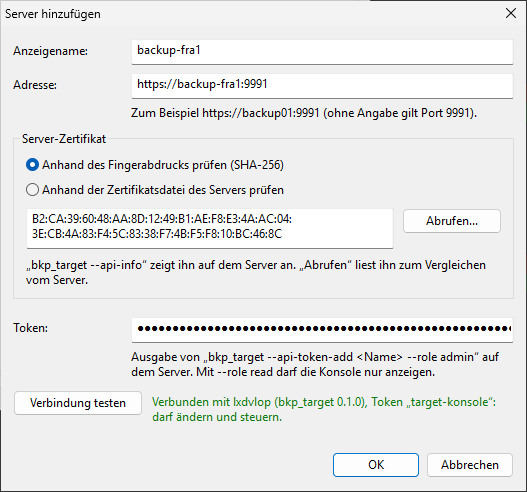
“File” › “Add server...” opens the same connection dialog as in the management console:
| Field | Content |
|---|---|
| Display name | Name in the server list; empty keeps the name from the address. |
| Address | For example https://backup01:9991. Without a port, 9991 applies. |
| Server certificate | Enter the fingerprint (SHA-256) from bkp_target --api-info, or “Fetch...” gets it from the server and shows it for comparison. Alternatively the certificate file of the server ([api] cert=, default /etc/bkp/bkp_target_api.crt); then the machine name in the address must match the certificate. |
| Token | The output of bkp_setup --enable-target-api or bkp_target --api-token-add. Leave empty when editing to keep the stored token. |
“Test connection” checks certificate and token before the server is saved; without a confirmed certificate the console sends nothing. “File” › “Assign group...” arranges servers in groups, for example by site; a group shows how many of its servers are not connected. Server list, groups and window position are in %APPDATA%\AegisGrid\tconsole.cfg, the tokens in it encrypted with DPAPI for the Windows account. “Remove server” only forgets address and token in the console.
15.4 The main window#
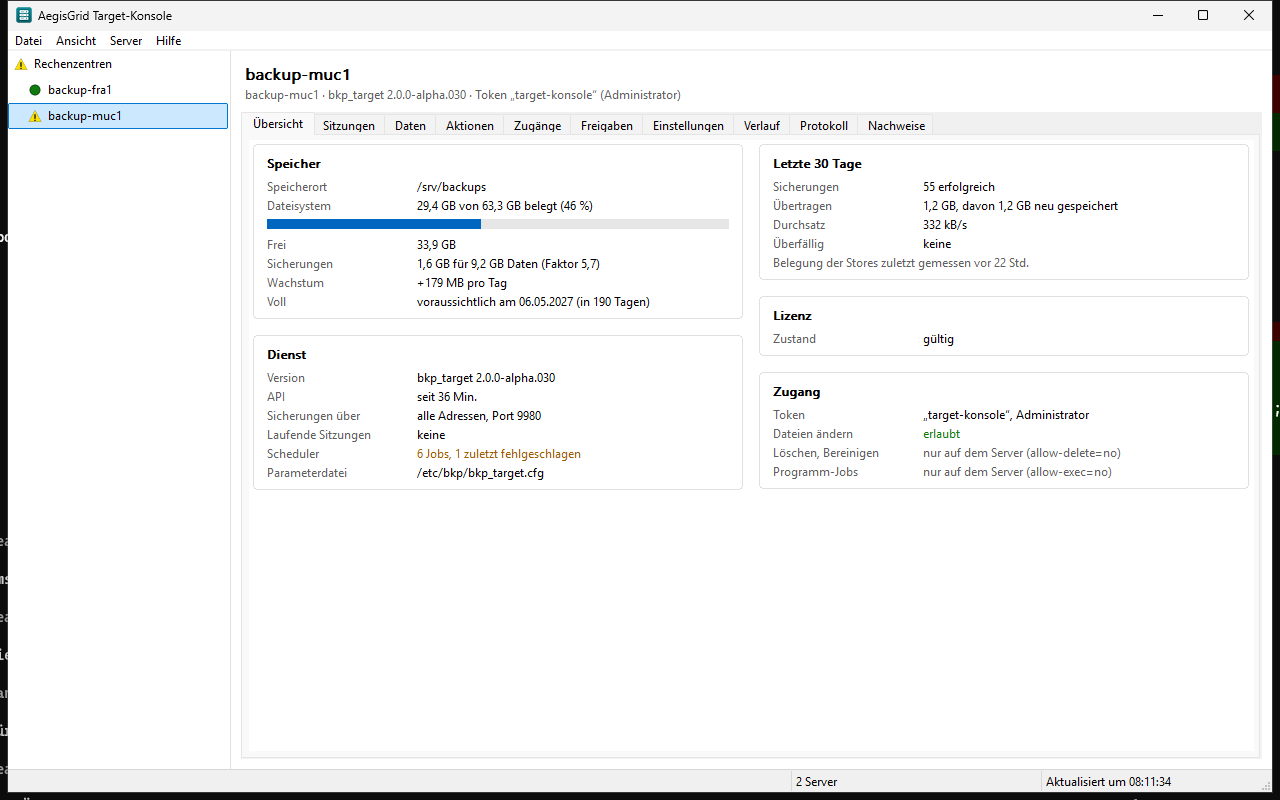
On the left are the servers, arranged in groups, with a sign for their state: green in order, blue with running sessions, a yellow triangle for a failed job, a blocked license or a warning of the server, red without a connection or with an error message of the server, grey while connecting; a group shows the worst state of its servers, the tooltip names the reasons. Above the tabs the header names machine name, version of bkp_target, the token and its role. The console refreshes the chosen server in the background; “View” › “Refresh” (F5) fetches new data at once, Ctrl+1 to Ctrl+9 switch the tabs. “View” › “Server list” (Ctrl+B) hides the list on the left to give the tabs more room; so does a double click on the divider or dragging the line all the way to the left. The button “»” in the narrow strip brings it back, in the width chosen last. The context menu of a server and the menu “Server” offer “Reload service” (read certificate, accesses, scheduler and [api] again, sessions stay) and “Restart service...”: running sessions may then finish up to the waiting time drain-timeout, what they have transferred is kept, and their next run continues from there.
| Tab | Content |
|---|---|
| Overview | Storage (free, used, data of the backups with dedup factor), growth per day and “expected to be full on …”, the last 30 days (backups, failed, refused, transferred, throughput, overdue), service (version, sessions, scheduler, parameter file, license) and the rights of the token. |
| Sessions | Running backups and restores with client, directory, store, kind, progress in percent and throughput. “Client” is the name the client gives (--client-name, otherwise its host name); pointing at it with the mouse, the console shows host name, FQDN, address, program and version, operating system and license, over directory or store the complete path on the server. A double click (or Enter, context menu “Details...”) opens a window with everything about the session, read anew every two seconds: the client, what it backs up (source, size, full or incremental, progress, time left, throughput, threads) and the data (deduplication, new in the store, compression with factor, encryption, hash, chunk and segment size of the store). When the session ends, its last details stay. “Show store” opens the store in the tab “Data”, “Hold...” holds a backup so that it continues later (section “Holding backups and maintenance mode”), “End session...” ends it with a reason the client is told; Ctrl+C copies a line, the context menu also everything. |
| Data | Directories of the storage, in them the stores with usage and last check, in them the runs with retention; check, prune, change retention, delete run. |
| Actions | The jobs of the target scheduler in two areas: “Action” (tasks for certain backups, started by hand) and “Scheduler/On the fly” (what runs by schedule, after an arrival or during the arrival), each as list, graphic and timeline (see below). |
| Accesses | The API keys of the clients (acl) with directories and rights; the console shows new keys once. |
| Releases | Storage this target provides for other accounts (hosted.conf, releases from the license server) with quota and usage; synchronization. |
| Settings | Every setting of bkp_target.cfg with the value in the file, the running value, the default and from when a change takes effect. |
| History | Key figures, charts and lists over weeks and months (see below). |
| Log | The journal of bkp_target or its log file target.log, with search, live updating and “Save as...”. |
15.4.1 Notices#
What the server reports about itself (system check, certificate, store fill level, update, mails, pending restart; chapter “Check restore”, section “Can the server do it?”) is in the status bar on the left next to “x servers”: with the sign of the level (error, warning, hint), with several with “2/3” in front; they change every 6 seconds, errors first, and stay as long as the mouse points at them. The tooltip shows all notices, for a group with the name of the server in front. Without a notice the field stays empty; an older bkp_target delivers none.
A click on the field or “View” › “Notices...” opens the window Notices: per notice level, server (for a group), notice and next step, below it the details and – where something has to be installed – the command for it with “Copy”. “Check now” starts the system check (only with an admin token, at most once per minute) and shows the progress until the new result is there. Hints can be hidden per server with “Do not show again”; “Show hidden hints” brings them back; if a hidden hint becomes a warning, it appears again.
The job dialog also says what the server lacks for the job: for pruef-vm-start instead of the help below the lines for example “KVM is missing on this server …”, red if the job fails like this, otherwise orange; for pruef-fsck and pruef-mount the missing programs. The note follows the command while you type. If only KVM is missing and QEMU can emulate, “Start emulated (--no-kvm tcg)” sets the option in args= (the VMs then start much more slowly). The same applies to the steps of a flow.
15.4.2 Holding backups and maintenance mode#
In the tab “Sessions” Hold... (button, context menu and session window) holds one or several marked backups at the next safe point. This is not an error: the client keeps what it has already sent and continues later with the same snapshot. The dialog asks for a reason (optional, at most 200 characters), when it goes on (with the next scheduled run, after minutes/hours/days or at a time) and, with several sessions, over how many minutes the continuation is to be spread (default 10, 0 to 1440), so that not all clients come back at the same time. A hold does not last longer than hold-max (default 7 days). Restores cannot be held.
Clients before version 2.0.0-alpha.042 cannot hold; the console says so and offers to end their session instead. With target mails set up the customer gets the template angehalten with reason and continuation time (Chapter 13).
“Server” › Maintenance mode... holds all running backups and refuses every new one until the maintenance mode ends; the dialog asks when it ends. The status bar then shows “Maintenance mode until …”. Calling it a second time offers to end the maintenance mode early; the held backups may then start again and come back with their next attempt. A restart of the service also holds running backups (restart-hold, default 5 minutes) instead of ending them. hold-max and restart-hold are in bkp_target.cfg; the Target API offers the same functions (POST /sessions/{id}/hold, /maintenance, GET /holds, docs/target-api.txt).
“Server” › Held backups... lists every hold with backup, directory, continuation, kind (operator, restart, client, time window, shutdown, time limit), who held it and the reason. Lift lets a backup in again at once, also during the maintenance mode; its client continues with its next attempt. Holding and the maintenance mode need a token with the role admin; any token may read the list.
15.5 Data: stores and runs#
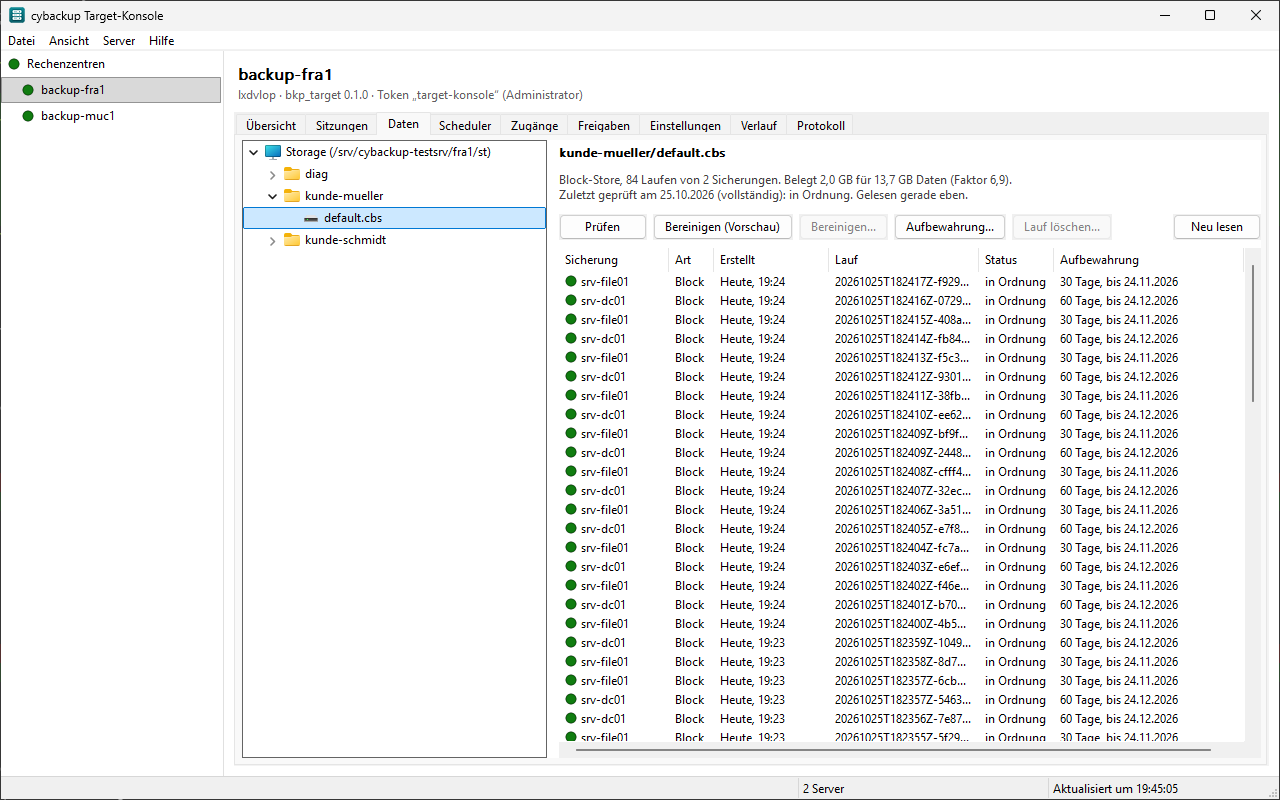
The tab “Data” leads from the directory (customer) through the store to its runs; “< Back” goes up one level. Usage, dedup factor and the list of runs are read by the server in the background as the service account aegisgrid; the console shows when they were measured, and “Read again” measures anew at once. A backup that is running into the store right now is at the top of the list of runs from its start, with beginning and amount transferred; as soon as all data is in the store, it becomes a finished run there. In the list of stores such a store shows “Running right now”. The actions keep running on the server even if the console is closed; their log appears in a window of its own.
| Action | What happens |
|---|---|
| Check | The server reads every block of the store and compares it with its checksum (like bkp_maintenance scrub). The result is then shown with the store. |
| Prune (preview) | A dry run shows which expired runs would be deleted. |
| Prune... | Deletes what has expired according to the retention of every run; the newest backup per name always stays. Only with allow-delete=yes. |
| Retention... | For the chosen run, all runs of a backup or the whole store, for example 30d, 12m, forever or gfs:7d,4w,12m; with “Preview only” as a dry run. |
| Delete run... | First a dry run shows what will be deleted; only “Delete for good” removes the run. Only with allow-delete=yes. |
| Move... | The whole store or only the runs of the chosen backup to another place on the target; first a dry run, then the confirmation. Only with allow-delete=yes. |
15.6 Browsing files#
In the tab “Data” the context menu of a store opens “Browse files...” (with a token with admin rights; not for Microsoft 365 stores). The window shows the backups of the store, for file backups the folders and files, for disk and VM backups first the choice Volume (the server opens them as described in Chapter 9). A double click opens a folder, “Up” goes back. “Save as ZIP...” saves chosen entries on this machine; a restore onto the customer's machines deliberately does not exist here.
An encrypted store needs the customer's store key (64 hex characters), then “Open”. The console keeps it only in memory as long as the window is open, and sends it along with every request over the TLS connection. The server never writes it to log, history or evidence. A wrong key results in “The key does not match this store.”.
Every access is an evidence entry “File access by the operator” with token, store, run, paths and whether the customer key was used (Chapter 12). If the operator downloads a ZIP, the customer gets the mail betreiberzugriff; with route.betreiberzugriff=aus in target-customers.cfg it can be switched off for a customer.
15.7 Actions and scheduler#
The tab “Actions” shows the jobs of the target scheduler (Chapter 10, bkp_target_sched.cfg) in two areas. Under “Action” are tasks you start by hand for certain backups – a check restore before the month-end closing, a check, an export, a mirror. Under “Scheduler/On the fly” is everything that runs by itself: by schedule, after the arrival of a backup, after another job or – as an on-the-fly step – already during the arrival. Which area a job belongs to follows from its lines: a job without schedule, on= and after= is an action; a job with after= belongs to the area of the job it follows.
The filter line applies to list, graphic and timeline: Customer (from the customer file of the target, from releases or by directory), Search in name, directory and note (upper and lower case and umlauts the same) and Show: all, failed, running, backups without a job or unchecked. “Unchecked” means: for a number of days (default 30, “View” › “Unchecked after ...”) no check and no check restore ran for the backup. The console remembers the filters per server.
15.7.1 Action#
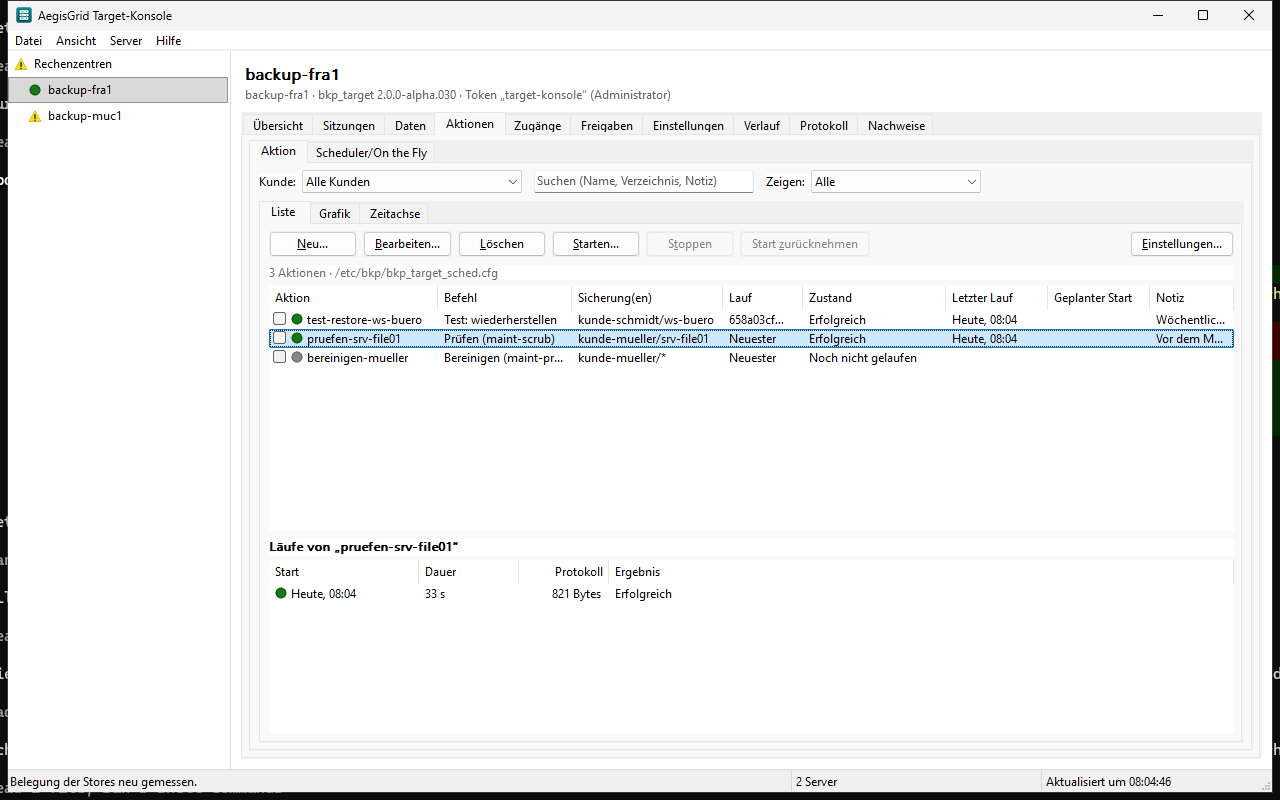
The list names every action with command, backup(s), run (“Newest” or a certain one), state, last run, planned start and note; below are the runs of the chosen action with log. “New...” offers templates (check restore, check, export, mirror, copy to S3). In the action dialog the backups are ticked or given as a pattern (kunde1/*), the run is chosen (the newest at the start or one from the list of the store's runs), for export and mirror the destination, plus mail and note. The console writes this as backup=, backup-kind= and backup-run= (Chapter 10). “Copy to S3” copies the whole store into an S3 destination from “Destinations...” (dest=, Chapter 6).
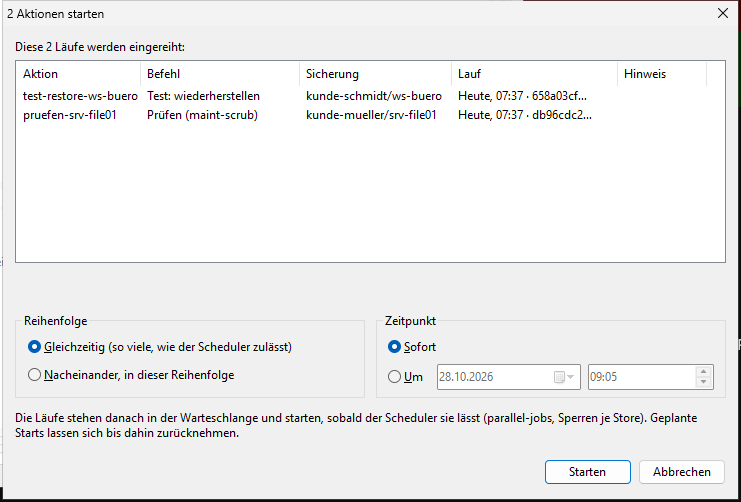
To start, tick the actions and choose “Start...”. The start overview shows every run that is queued – with patterns one per backup –, with the run it works with; it asks the target beforehand in a trial run. Actions that delete data (prune, cleaning up after a check restore, a program of your own) are marked. The runs start at the same time (as many as the scheduler allows) or one after the other, at once or at a point in time. “Take back start” takes back a planned start as long as it has not begun yet; the whole start with all its actions is taken back.
15.7.2 Scheduler and on the fly#
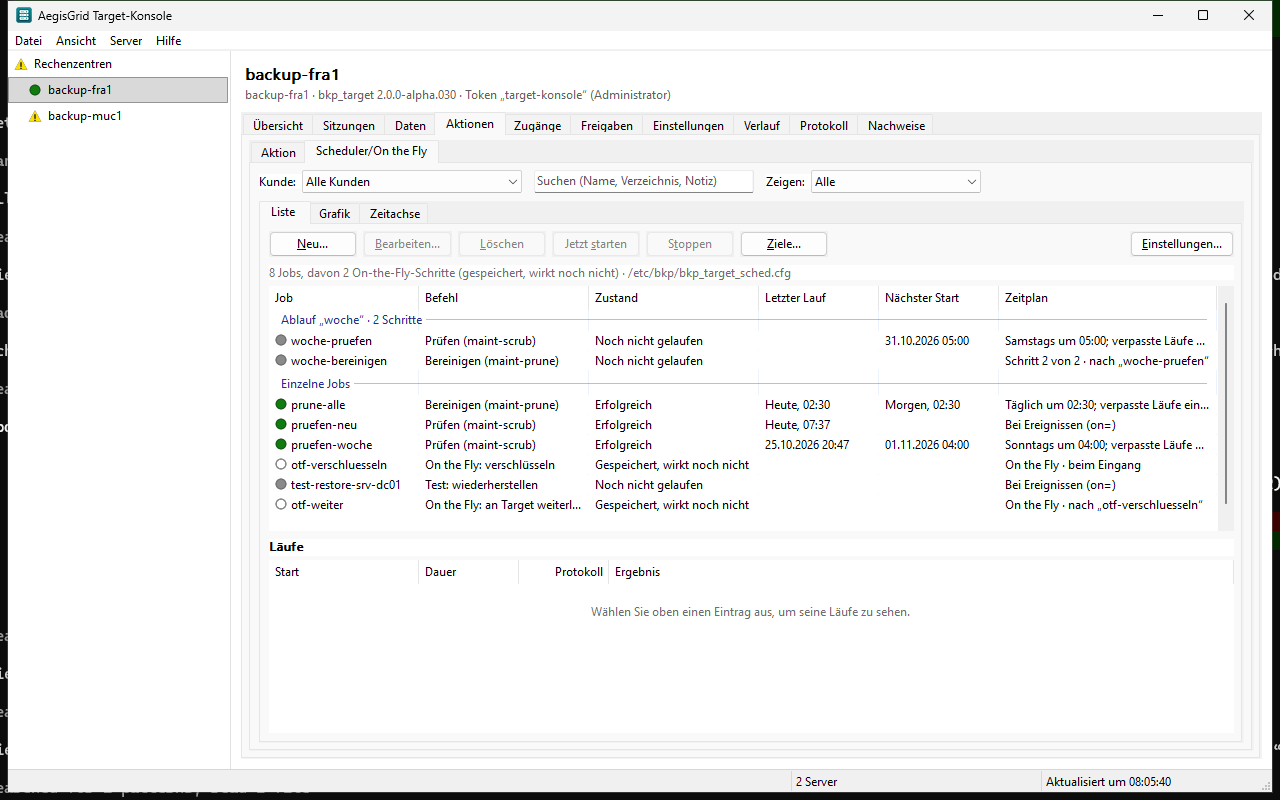
Under “Scheduler/On the fly” › “List” the console edits the jobs as their lines key=value, exactly as in the file. “Edit schedule...” opens the schedule editor for the schedule lines (chapter “Management console”, section “Schedule editor”; at the end of the window without “hold”, which the target scheduler does not know) and puts the new lines in place of the old ones. “Server” › “Holiday calendars...” maintains the server's own holiday calendars. “Check schedule” describes the schedule in words and names the next start dates before saving. “Start now” queues a run; it begins as soon as the scheduler allows it (number of parallel jobs, locks per store), also outside a time window. For a job that others follow (after=), the context menu also offers “Start without follow-up jobs”: this run queues none of its follow-up jobs (like bkp_target --sched-run <job> --no-after). “Cancel” ends the run of a running job (hard after 5 minutes without an end); the next start by schedule stays. “Pause...” pauses the running job after a confirmation (like --sched-pause), the list then shows it as “Paused” or “Paused until …”; “Resume” continues it. “Switch off” leaves a job in place, but it no longer starts (enabled=no); a run that is running right now still ends, “Switch on” undoes this. “Delete” only works for a switched-off job that is not running: it is removed from bkp_target_sched.cfg, and the chain closes around it – a job that only followed it moves into its place and takes over when it started (its predecessor, schedule or events), a job that follows several then follows its predecessors, and whoever waited for it (wait-for=) no longer waits for it. The confirmation names each of these changes; everything is written in one go. “Settings...” changes the section [sched]. At the bottom are the runs of the chosen job with result and duration; “Show log” opens the log of a run, for a running job continuously.
On the fly: “New” › “New on-the-fly step...” creates a step that is to work during the arrival of a backup: encrypt, restore (for example for a standby VM), forward to another target or to S3 storage. Steps can be joined into a chain; on an error the step reports it or catches up later, max-rate= limits the bandwidth. “Destinations...” maintains the destinations of forwarding (another target or S3); the console only accepts their keys as a file (file:) or KMS reference (kms:), never the key itself. This version only stores on-the-fly steps, they do not take effect yet: the console writes this on every step, the graphic draws them purple and dashed, and a start by hand is refused.
If a run waits for a backup or another job (wait-for=), the column “State” says for what and until when; if its waiting period has expired, “Not started: waiting period expired”. “Check schedule” also describes the waiting in words.
15.7.3 Flows#
Several jobs that are to run one after the other are put together by a flow: “New” › “New flow...” creates one. At the top are its name and its trigger in words; “Change trigger...” sets when it starts (schedule with the schedule editor, events such as on=backup-success, waiting first with wait-for=). A template fills a new flow in advance, for example with all steps of a weekly check restore. You insert a step by choosing the job kind in the field “Job kind” and clicking “Insert”, or by dragging it from the list “Available job kinds” into the steps; the line shows where it lands. A double click on a step opens its lines (parameters, run-as= …) and the choice whether it starts after the previous one only after success, also after an error or only after an error. The order of the list is the order of execution: steps can be dragged, moved with “Move up”/“Move down” or Alt+arrow key.
“OK” writes all changed steps in one go (POST /sched/batch); if something is invalid afterwards, the server refuses everything and changes nothing. Every step is a job named <flow>-<kind> with flow=<flow>; when re-sorted it keeps its name, its runs and logs. In the job list the steps of a flow are together in their order, “Edit” opens the whole flow, “Delete” takes out a single (switched-off) step, “Delete the whole flow...” in the context menu deletes all steps if none is running and the first is switched off. “Start now” on the first step starts the whole flow, on a later step the rest from there.
15.7.4 Graphic view#
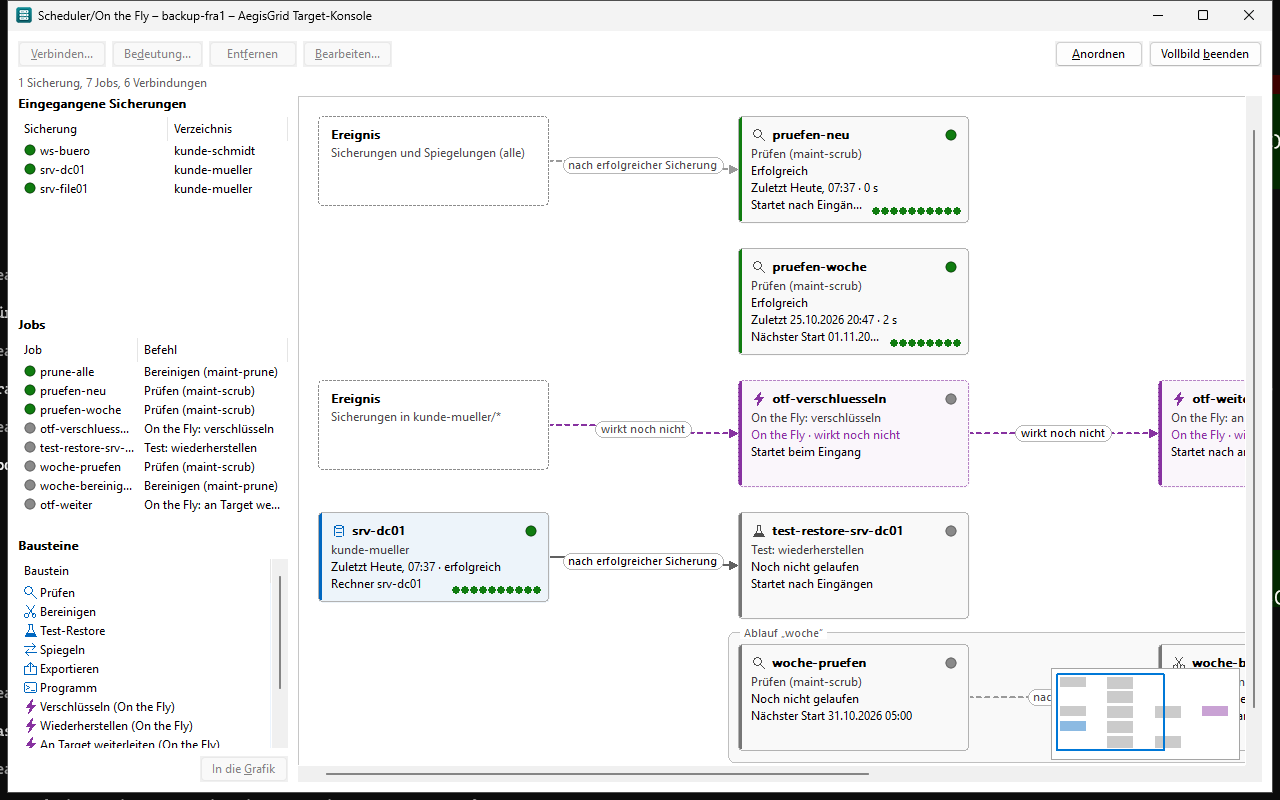
Besides the “List”, both areas have a “Graphic” and a “Timeline”. The graphic shows backups and jobs and their triggers as labelled lines. On the left are the backups that came in (the 40 that came in last, with result, plus every backup running right now from “Sessions”) and all jobs; a double click, “Into the graphic” or dragging onto the area takes them into the graphic. A connection is made by dragging from the point at the right edge of a backup or job to a job or by choosing “Connect...”; then the console asks when the job starts: after a successful, after a failed, after every backup or at its beginning – between jobs after success, after completion or only after an error. A line from a backup writes on= and match-backup= of the job, a line between jobs after= and after-mode=. Because these details apply to the whole job, all lines of the same kind into a job have the same meaning; the dialog says so. A check restore always starts after a successful arrival.
A double click on a job opens the job dialog (for a flow the flow dialog), on a backup its details with “Show store”, on a line the question when the job starts. The context menu of a job offers, like the list, “Cancel”, “Switch off” (space bar) and “Delete” (Del; only for a switched-off job that is not running, the chain closes as in the list). “Remove” (Del) on a line removes the connection, on a backup it takes it out of the graphic together with its lines. If a job then has no trigger any more, the console switches it off after asking. Dashed lines come from filters of the job itself (match-dir= …, in the graphic “Event”) or from a flow and are changed in the job dialog; a line to a job that also has on= is dashed as well – there after= is a condition. The steps of a flow lie in a common frame.
A running job fills up from the left in the graphic. Steps of a check restore, check and mirror report their real progress (“Checking scsi1 partition 2 (2 of 5) · 40 %”, “Waiting for …”, “Mirroring kunde1/srv1 (3 of 8)”, with time left); otherwise it is estimated from the duration of its last successful runs (“approx. 60 %”, with time left), without earlier runs as a moving band; a running backup with the progress its client reports, otherwise likewise estimated from the duration of its last successful runs in the history. When a job ends, it lights up green or red for a moment. Next to its symbol every job shows what it is (“Check”, “Store”, “Copy”, “Program”, “On the fly”), below it what it does and on what (“Check the file system · scsi1/part2 (data)”, “Restore · kunde1/srv1”, “Check blocks”), then state, last run and next start; the tooltip shows everything in detail with the name of the job, the job dialog (double click) likewise. Where jobs and backups are placed is stored by the target (bkp_target_sched.layout.json), so every console sees the same graphic; “Arrange” arranges everything anew. “Full screen” (F11) opens the graphic in a window of its own, Esc returns. Keyboard: Tab runs through jobs, backups and lines, the arrow keys move the chosen job or backup (Ctrl: in small steps), Shift+arrow keys make it wider or narrower and show one line more or less, Enter opens it. The mouse wheel scrolls, Shift+mouse wheel sideways, Ctrl+mouse wheel zooms around the mouse position (Ctrl+Plus/Minus around the centre); the area is moved by dragging on a free spot or with the scroll bars. In the job dialog “Choose backup...” inserts one of the backups that came in as match-backup=.
Size in the graphic. Every job and every backup is as wide as its permanent texts need (title, what the job does, docking points, verdict). At the right edge you drag a job or backup wider or narrower, at the bottom edge it shows line by line more or less (until only the title remains; docking points and verdict always stay below), at the corner both; the mouse pointer shows the handle. Several marked ones change together. “Optimal size” in the context menu (or a double click on the edge) makes it as wide as everything it shows right now needs, with all lines; “Optimal size for all” in the context menu of the area does this for all. The target stores the size with the arrangement (older targets only until the next load). When moving and enlarging, everything snaps to a grid of 10 points and to the edges of the others; a dotted line shows the edge it is at, and a line becomes horizontal when snapping. With the Alt key held down nothing snaps. Ctrl+Z undoes moving, size and arranging (in the same order as changes to jobs), Ctrl+Y redoes it; the context menu of the area names what would be undone.
The first line from a backup into a job asks whether it is to run after the arrival (job) or already during the arrival (on the fly). Under “Action” a line “by hand” connects a backup with an action (backup=); this does not make it start by itself. Every view – area and filter – remembers its own arrangement. A backup in the graphic shows “Unchecked” if it has not been checked for a long time, and a note if its customer gets a mail on errors. Its context menu creates an action from a template, “Same jobs also for …” transfers jobs to further backups, plus check, prune (preview), retention and a note.
Collecting changes. What is changed in the graphic (lines, building blocks, switching off, deleting) only applies after “Apply...”: until then new and changed jobs are dashed and labelled “new” or “changed”, Ctrl+Z and Ctrl+Y undo and redo steps. “Apply...” shows every line before and after and writes everything in one go (POST /sched/batch); if someone else has changed the jobs in the meantime, the console says so instead of overwriting anything. “Discard” leaves everything as it was; when leaving the graphic, when changing the server and when quitting, the console asks. Dialogs (job, flow, action, on the fly, destinations) save at once as before.
Building blocks. The list “Building blocks” on the left offers check, prune, check restore, mirror, export, program, the four on-the-fly kinds and a destination; dragged onto a backup or a job (or with Enter) a matching job is created behind it. “Recommended protection” in the context menu of a backup creates in one step what every backup should have: a check after every arrival, a weekly check restore with cleaning up afterwards and – if the target sends mails – a mail on errors; with several marked backups for all.
Keeping the overview. Several jobs and backups are marked with Ctrl+click, with a frame while holding the Ctrl or Shift key, or with Ctrl+A; they can be moved together and switched off or on (space bar, switched-off ones carry “disabled”). The backups of a customer are in a frame; a click on its title collapses it into one entry with a summary. Dragged at the title or at the frame line, the whole customer moves along; a collapsed entry takes along everything it sums up when moved. What the console itself places (new jobs, “Into the graphic”, “Arrange”) goes into the frame of its customer, a new customer outside all frames; if a frame needs more room, the customers below it move down. Every job and every backup carries a symbol of its kind and, as a row of dots, the last ten results; the tooltip names the last runs, the context menu opens their logs. If the graphic is clearly bigger than a large area, an overview map at the bottom right shows the whole (never over the chosen job); Ctrl+0 on the area shows everything.
Docking points of a check restore. A check restore whose backups are known (backup= or match-backup=) shows at the right edge a docking point per disk and partition with label and file system (for example “scsi1 · partition 2 · data (xfs)”); the point at the title stands for all disks. A line from a docking point to a check step sets its --disk and --part; if you drag a building block onto a docking point, the step is created for this partition right away. Greyed out are partitions that cannot be checked (encrypted, swap, empty). “Go through the file system” (count and read files) hangs behind “Mount the file system” or directly on a partition of “Check the file system” and then mounts it itself; “Options...” in the context menu (or in the job dialog) shows every setting of the counting in a window: mount folder and unmounting at the end, reading with method, comparison, sample, maximum amount and gentle reading, the checks and what is left out. If further checks of the same partition follow a step (check → mount → count), they stand side by side as a branch; the cleanup hangs on all branches. “Create the complete check chain...” in the context menu of the check restore adds in one go, after asking, what is still missing: per disk the check of the file systems, per partition mounting and counting, for VMs the start and at the end the cleanup. Lines run in soft curves around jobs and backups, never through them; if a line rises or falls, it leaves the job or backup horizontally (its label is there) and only turns shortly before its destination. Several lines of the same kind into the same job (for example “after completion” from all branches into “Unmount the file system”) join in front of it into a collecting line with one label; a label that does not fit into the gap in front of the arrowhead stands there on several lines.
Keeping check chains in view. If a check restore is dragged onto a backup, the console asks whether the complete check chain is to be created right away (recommended, with the number of jobs) or only the check restore. The chain stands as a table: per partition a row with “Check the file system”, “Mount the file system” and “Go through the file system”, below it the VMs, on the right “Unmount the file system” and “Clean up”; “Arrange the check chain anew” in the context menu arranges an existing chain like this (Ctrl+Z restores the previous arrangement).
- Traffic light at the points: every docking point shows the last result of its step – tick (passed), cross (finding), circle (skipped) –, the tooltip names the finding. Below the points of the check restore is the verdict of the last check report, for example “Passed on 28.10. · 5 of 5 checked”. File systems are counted; swap and empty partitions do not count. If a step of the chain failed or was cancelled (for example a VM start), the verdict is “not passed” and names this step (“Step “Start VMs” failed”), even if all file systems were in order.
- Progress: while a chain is running, the check restore shows “Check chain: 3 of 7 steps” with a bar; lines to running jobs move (not with high contrast or with Windows animations switched off).
- Highlighting the path: a chosen job or backup – or one on which the mouse rests briefly – highlights its path from the backup to the end of the chain, the rest becomes pale. Esc or a click into empty space ends this.
- Collapsing: the sign “−” at the title of the check restore (or “Collapse the check chain”) turns the whole chain into one box with the table of the last check report: one row per disk, partition and VM, one column per check. A double click on a cell opens its job, “+” or Enter expands the chain again. The console remembers this per chain.
- Hints with an action: a “!” in front of a point means: new in the last backup, not checked yet. A click on it or “Complete the check” creates the missing steps and hangs them on “Unmount the file system”. If a disk or partition is missing in the last backup, “Remove steps...” removes its branch after asking.
Hints while planning. The console checks the graphic at every change and marks the jobs and backups concerned with “Hint”; the tooltip says what it is about, the info line names the number. Hints are given for more simultaneous runs than parallel-jobs allows, for a check restore that is bigger than the free space of the target, for a chain with a switched-off link (the steps behind it never run), for a backup that is overdue and for an on-the-fly step without its destination.
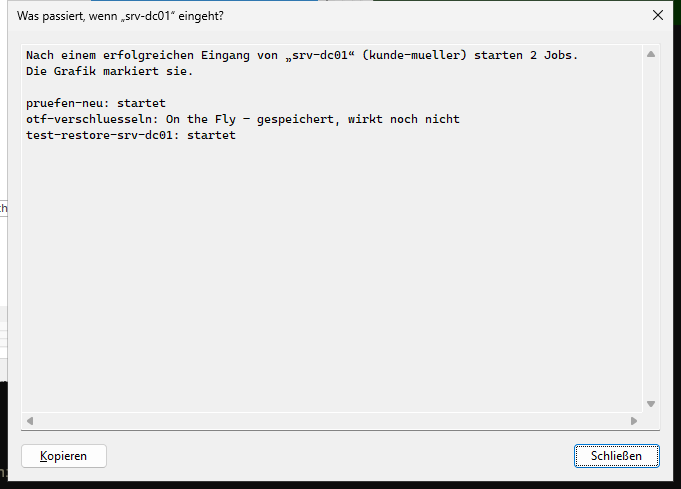
What happens when it comes in? This entry in the context menu of a backup (graphic or list) asks the target what a successful arrival would trigger. The graphic marks the chain that would start; a window names every job with its reason – also those that do not start, and why (switched off, other filter, other time of the backup, waiting for something, on the fly does not take effect yet).
15.7.5 Timeline#
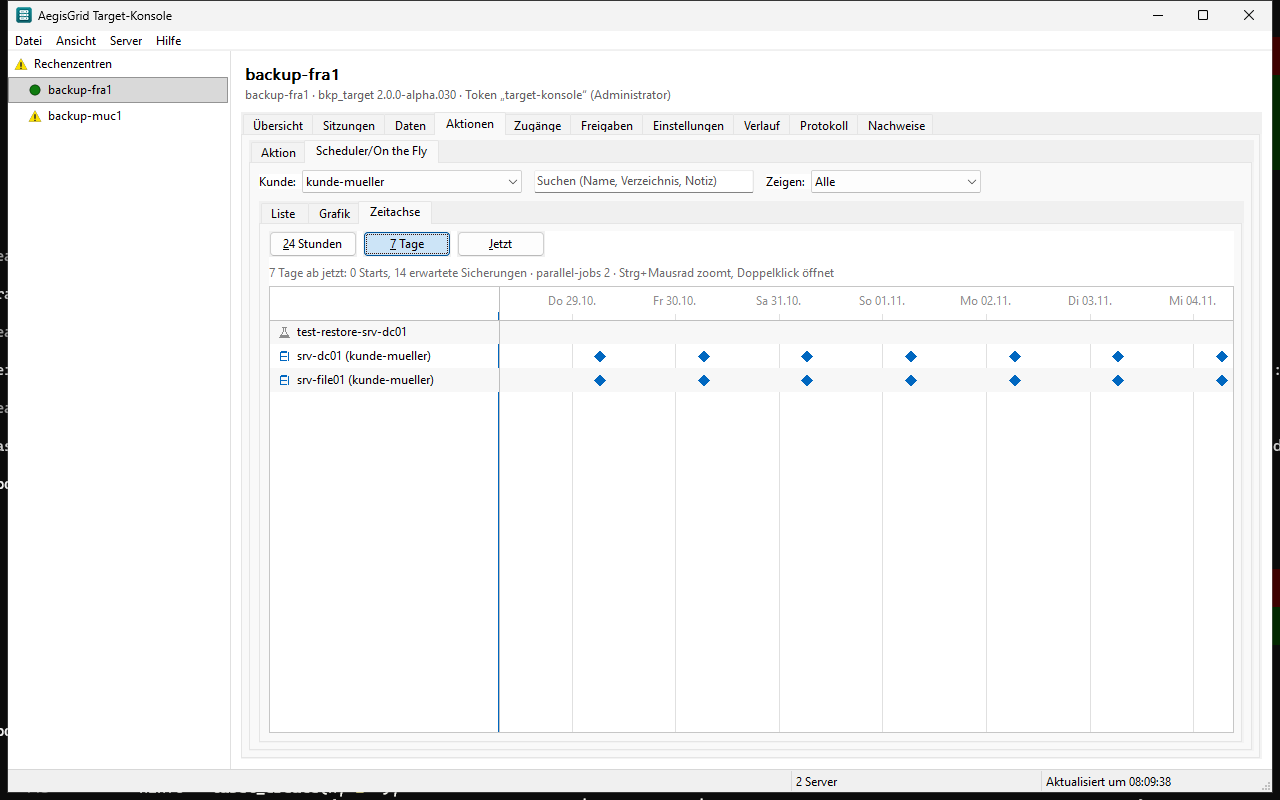
The “Timeline” shows the next 24 hours or 7 days: per job a row with its planned starts as bars (as long as its last runs), per backup the expected arrivals as diamonds (from the intervals so far). Where more runs coincide than parallel-jobs allows, the axis is marked red. Ctrl+mouse wheel zooms, “Now” jumps back to the beginning and reads anew, a double click opens the job.
15.7.6 Exporting and importing the setup#
“File” › “Export setup...” writes the setup of the chosen server into a file <server>-aufbau-<date>.json: all jobs, actions and on-the-fly steps, the destinations without their keys, the arrangement of the graphic with notes and collapsed groups. “Import setup...” loads such a file onto another server, for example to set up a second data centre the same way. For every destination the console asks where its key lies on this server (file: or kms:); if the entry stays empty, the destination and the steps using it are not taken over. A preview shows beforehand what will be created anew, what replaced (same name) and what not taken over, and which backups have never come in on this server. “Import” writes the destinations and all jobs in one go; the server checks the whole configuration and changes nothing on an error. A target that does not know actions or on the fly yet refuses the import with a note on the update needed.
15.8 Accesses, releases, settings#
Accesses: “New...” creates a key for one to eight directories (kunde1, kunde1/* for the subdirectories, kunde1/** for everything below, kunde1/*** for kunde1 itself and everything below), read-only if wanted. The server creates the key and shows it once (“Copy”); the access file only holds its checksum. A changed or deleted access applies at once; a running session with a deleted key ends. Accesses from releases of the license server are shown in the column “Origin”; they are maintained at the synchronization, not here.
Releases: a target with hosted.conf provides storage for other accounts. The list shows every release with account, quota and usage; below it hosted.conf can be edited (“Save”, “Discard”). “Synchronise now” fetches the releases from the license server in the background.
Settings: for every key of bkp_target.cfg the list names what is in the file, what the service is running with right now, the default and whether a change takes effect at once, after “Reload service” or only after a restart. “Change...” sets a value or removes the line (“Use the default”); the server checks the whole file with the new value and leaves it unchanged on an error.
15.9 Email settings#
“Server › Email settings...” (likewise the button in the window “Notices”) opens everything that determines the target's mails: the section [mail] in bkp_target_sched.cfg, the customers in target-customers.cfg and the reports. What the mails contain and when they come is described in Chapter 10 (“Mails to operators and customers”). Only accesses with admin rights on a server with allow-config-write=yes may change them; otherwise the dialog only shows everything and names the reason. If someone has changed the file in the meantime, the console reports it instead of overwriting other people's changes, and offers to reload.
- Sending: “Send notifications by email” turns the section
[mail]on or off. Below it SMTP server, port, encryption, user, password, sender, CA file and time limit. The console never shows the password: leaving it empty keeps it, “Remove password” deletes it; if it is in a file (file:), a note says so. “Check connection” logs on to the mail server and checks sender and recipient without sending a mail; an error comes with a classification (name, connection, certificate, logon, sender or recipient refused) and the next step. “Send a test mail” sends a real mail, “Check the templates” checks the server's own templates. - Recipients: the operator's addresses (at most 16), “Reply to”, when jobs without their own
notify=report, “Missing after” and the list of all mail kinds with an explanation. Per kind a tick whether the operator gets it (operator.<kind>=), “Addresses...” for addresses of its own for this kind only (operator-to.<kind>=) and the choice “at once” or “in the daily summary”. “Daily summary...” sets time and mail kinds of the summary, “Remind again after” the interval for jobs that keep failing (repeat-after=). In addition the evidence report (monthly, weekly, off) and the consumption report (monthly, off). “Preview...” shows a mail of the chosen kind with sample values and, if wanted, sends it as a test mail to an address. - Customers: all customers with folders, contacts and origin. Customers of your own (file) can be created, edited and deleted; customers from releases come from the license server and can only be viewed. The customer dialog takes short name, name, language, contacts (with technical and commercial mails), “Missing after”, the evidence report and per mail kind whom it goes to (customer, operator or partner, both or nobody).
- Who gets what?: the recipients as the server resolves them – per mail kind the operator's addresses and per customer, with a filter on one customer. Folders of the access list without customers are listed separately; through them nobody except the operator gets a mail.
- Queue: mails not delivered yet or given up, with attempts and last error; “Try again” or “Discard”.
- History: every mail delivered or given up in the last 13 months (time, kind, customer, recipient, subject, result), with filters and “Export...” as CSV. The mail text is not kept.
Folders in the customer dialog: the list under “Folders” shows all folders of the server's access list with the access they belong to and the customer who already has the folder. A tick enters the folder in the text field below; subfolders and patterns such as mueller/** can also be typed there, and the ticks follow the text. If a folder already belongs to another customer of your own, the console names it in red and leaves “OK” greyed out, because every folder may belong to one customer only. The dialog does not create folders.
Transferring to other servers: “Transfer to other servers...” copies the settings to further servers of the console: tick the servers (or whole groups) and choose what goes along – sending, recipients and mail kinds with daily summary and reminders, customers. The console saves unsaved changes first. The password is never transferred; if it is missing on a destination, the result says that it still has to be entered there. Paths such as the CA file stay as they are on the destination; customers from releases and the reports are not transferred. The list names per server whether it worked, whether it may only read, whether it has been changed in the meantime or could not be reached.
Which mail kind goes to whom by default (column “Operator”: the tick in the tab “Recipients”; column “Customer”: the route in the customer dialog):
| Mail kind | Customer | Operator |
|---|---|---|
Error (fehler) | yes | yes |
Chain (kette) | yes | – |
Damage (schaden) | yes | yes |
Missing backups (ausbleibend) | yes | yes |
Success (erfolg) | yes | yes |
Quota (kontingent) | yes | yes |
Release ended (freigabe) | yes | yes |
Check restore report (pruefbericht) | yes | yes |
Evidence report (nachweisbericht) | if chosen in the customer dialog | yes |
Server state (serverzustand) | – | yes |
Held backup (angehalten) | yes | – |
Virus found (virenfund) | yes | yes |
Consumption budget (verbrauch-budget) | yes | yes |
Consumption report (verbrauchsbericht) | yes | yes |
Always to the operator, even if all ticks are missing: test mails, problems with the evidence log and faulty templates.
15.10 History#
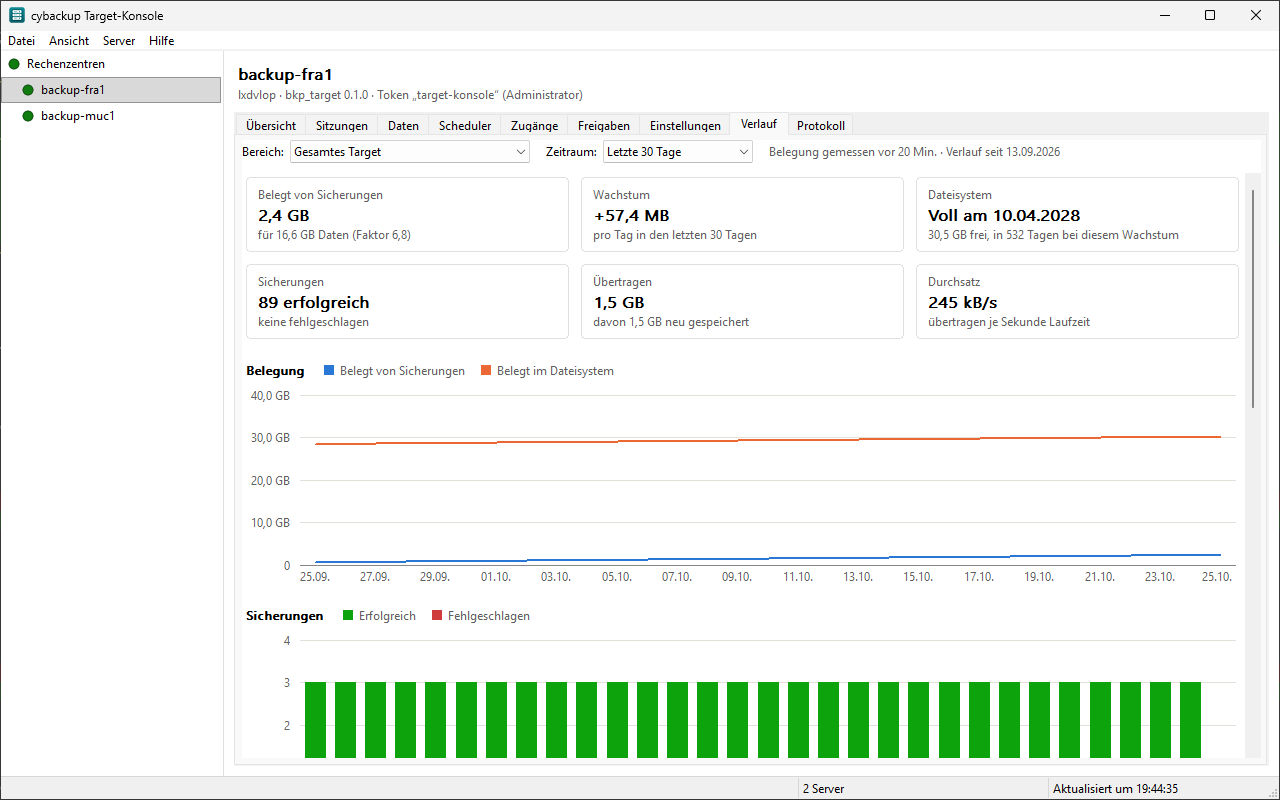
The history is based on the server's records: if bkp_target runs with the parameter file bkp_target.cfg, its scheduler process writes every backup, every end of a scheduler job and once a day the usage of every store, of the file system and of the quotas to /var/lib/bkp_target/history/ (switch off with history=no, retention history-months=, default 24 months). The figures begin when it is switched on. “Area” chooses the whole target or a group (customer, release), “Period” the last 30, 90 or 180 days, the last year or two years.
- Key figures: usage, growth per day, “Full on …” (linear projection over the chosen period, needs measurements on at least 3 days; the overview computes with the last 30 days), backups by result.
- Charts: usage in the file system and by backups, backups per day by result, data transferred and newly stored, throughput. A crosshair with tooltip shows the values of the day under the mouse.
- Overdue backups: backups whose last success is longer ago than twice their usual interval (estimated from the last 12 backups, at least 6 hours).
- Failures by group and the scheduler jobs with their results in the period.
15.11 When the connection does not work#
| Message | Cause and next step |
|---|---|
| No connection | The server cannot be reached, the API is off or port 9991 is blocked. On the server check bkp_target --api-info (enabled: yes?) and ss -ltn | grep 9991. The console keeps trying by itself; F5 at once. |
| The server's certificate does not match the confirmed one | The API certificate was created anew (--api-init --force) or another machine answers. Compare the fingerprint with bkp_target --api-info and take it over under “Edit server...”. |
| The server refused the logon | The token was removed or entered wrongly. Check with bkp_target --api-token-list, create a new one if needed. |
| The server's clock is … ahead/behind | Admin requests are signed and only valid for a short time. Set the clocks of server and workstation by NTP. |
| only on the server | The action is locked in [api] (allow-config-write, allow-delete, allow-exec); it works on the server's command line. |