
bkp_console.exe is a Windows program with a window for daily work with the scheduler bkp_sched. It connects through the HTTPS API to one or more machines on which bkp_sched runs (Linux and Windows) and shows all jobs with their state, the earlier runs with their figures and the logs, also live during a run. With an admin token you create, change and delete jobs through it, start them at once or cancel a run, and maintain the scheduler settings and the mail delivery. If wanted, it also sets up what is backed up and where to: the profiles with their sources and the destinations (sinks and backup servers).
The console itself needs no administrator rights. What it may do is decided by the token the scheduler issued alone. The scheduler checks every change before it takes it over.
14.1 Installation#
The console is the component console of aegisgrid-setup.exe (Windows 10 from version 2004, Windows 11, Windows Server 2022 and later). In the wizard it belongs on Windows to the preset “Client”, together with the job scheduler. For a pure management workstation, tick only core and management console under “Custom”. Afterwards the start menu has the entry “AegisGrid Management Console” under “AegisGrid”.
without a window, for example for software distribution
aegisgrid-setup.exe --silent --accept-eula --components core,consoleIf the job scheduler is installed on the same machine, the setup also sets up the connection right away (page “Management console”): at its next start the console shows “This computer” (localhost) connected, with the confirmed fingerprint and a token of its own. With the choice “Change jobs, destinations and profiles, control jobs” it is an admin token, and the setup also allows the API to change destinations and profiles (section “Preparing the scheduler”); “Only view everything” issues a read token. Until then the token is in C:\ProgramData\AegisGrid\konsole\, readable only for this user; the console takes it over encrypted and deletes the file. Running the setup again issues the token anew; the console takes it over at its next start. The following sections are then only needed for further machines.
14.2 Releasing a scheduler for other consoles#
If a customer has several machines with the job scheduler, not every console has to enter every scheduler by hand. A scheduler can be released: then the management consoles of all other machines of the same account (machines with job scheduler and management console) get it by themselves, each with its own access. Machines of other accounts do not get it, not even those of a supporting partner; there it is entered by hand if needed.
A scheduler is released in the console under Scheduler > Release for other consoles... (the console needs an admin token for this), in the setup (page “Release for other computers” or --console-release) or on the client itself:
bkp_sched api-release read                     view only
bkp_sched api-release admin                    change and control
bkp_sched api-release --address srv1.example.lan  how the other machines reach it
bkp_sched api-release off                      end the release
bkp_sched api-release what is released and for whom- View only or change and control applies equally to all machines of the release. If in doubt, choose “view only”.
- Reachable at: the name or address by which the other machines reach this one (up to four, separated by commas; the console tries them in turn). Empty means the DNS name of the machine. The port is that of the API (default 8447); a firewall must allow it (on Windows the setup creates the rule).
- The way goes through the site server of the account (chapter “Site server”): the scheduler reports the release at the hourly synchronization, creates a token of its own for every machine (
lic-<installation>in the token file;bkp_sched api-token listshows for which machine) and passes it on encrypted for exactly this machine. The site server never sees the tokens. The other machines get the scheduler after their next synchronization, at the latest after about two hours; “Synchronise now” in the dialog speeds this up on this side. - The dialog shows under “State” for which machines the release currently applies.
- End: untick “Release this scheduler” (or
api-release off). The tokens of the other machines become invalid at once; their consoles remove the scheduler from the list after the next synchronization.
In the console of a machine for which schedulers are released, these appear in the list by themselves (the status bar says so). Under File > Edit scheduler only the display name can be changed for them; the console keeps address, certificate and token up to date itself. Remove scheduler hides a released scheduler; File > Show hidden schedulers again brings it back. For this the console must be connected with an admin token to the scheduler of its own machine (“This computer”), because it learns about the releases through it.
14.3 Preparing the scheduler#
On Windows bkp_setup turns the API on (also in an existing bkp_sched.cfg without enabled; an explicit enabled=no stays). On Linux it is off by default. On every machine the console is to manage it is set up once (Linux as root, Windows in an administrator command prompt):
- Create the certificate.
bkp_setupalready did this when installing the scheduler;api-initleaves an existing certificate unchanged. - Add the section
[api]tobkp_sched.cfg(Linux/etc/bkp/, WindowsC:\ProgramData\AegisGrid\).bkp_setup --enable-sched-api(Linux) writes it along when it creates the file;bkp_sched api-enableturns it on in an existing file. The service takes over changes to[api]without a restart. - Create a token for the console. It is shown only once.
- Read address and fingerprint of the certificate with
api-info; the console needs both.
bkp_sched api-init
bkp_sched api-token add console-admin --role admin
bkp_sched api-info
bkp_sched.cfg: API on all addresses, port 8447
[api]
enabled=yes
listen=0.0.0.0:8447| Role | What the console can do with it |
|---|---|
read | View everything: jobs, states, runs, logs, settings. Dialogs open read-only. |
admin | In addition create, change, delete, start and cancel jobs, pause, hold and throttle running jobs; change scheduler and email settings; with allow-agent-config-write=yes also destinations, sinks and profiles. |
On Windows bkp_setup creates a firewall rule for bkp_sched_net.exe. On Linux, open port 8447/TCP only for the networks of the administrators. Further restrictions in the section [api], for example which commands the API may create and start (allowed-commands), whether it may change the configuration at all (allow-config-write) and whether it may set parameters (allow-args), are described in docs/sched-api.txt (section 2.3).
The API may only change destinations, sinks and profiles (sinks.cfg and bkp_agent.cfg) if [api] allow-agent-config-write=yes is set; by default it is off. Without this switch the console only shows destinations and profiles. The Windows setup sets it when it connects the console to “This computer” with the role for changing (an explicit no in bkp_sched.cfg stays). By hand, bkp_sched api-enable --agent-config-write turns it on, or you enter it:
bkp_sched.cfg: change destinations and profiles through the console
[api]
enabled=yes
allow-agent-config-write=yes
Caution: An admin token is practically root or SYSTEM access to the client: jobs run with these rights and can pass any parameters to the programs. Treat admin tokens like an administrator password, issue tokens with --role read for mere observing and invalidate tokens no longer needed at once with bkp_sched api-token remove <name>. With allow-agent-config-write=yes an admin token can also direct backups to another backup server; set the switch only where the console is really meant to maintain the destinations.
14.4 Adding a scheduler#
“File” › “Add scheduler...” opens the dialog for the connection:
| Field | Content |
|---|---|
| Display name | Name in the list of schedulers; empty keeps the name from the address. |
| Address | For example https://backup01:8447. Without a port, 8447 applies. |
| Scheduler certificate | Enter the fingerprint (SHA-256) from bkp_sched api-info, or “Fetch...” gets it from the scheduler and shows it for comparison. Alternatively the certificate file of the scheduler (bkp_sched_api.crt); then the machine name in the address must match the certificate. |
| Token | The output of bkp_sched api-token add. Leave empty when editing to keep the stored token. |
“Test connection” checks certificate and token before the scheduler is saved. The console never connects without this check: if the scheduler presents another certificate, it drops the connection before sending data and shows the fingerprint presented. This also happens when the certificate on the client was created anew (api-init --force); then compare the new fingerprint with api-info and take it over under “Edit scheduler...”.
The list of schedulers is in %APPDATA%\AegisGrid\console.cfg. The tokens in it are encrypted with DPAPI for the Windows account that entered them; another account or another machine cannot read them. “Remove scheduler” only forgets address and token in the console; nothing changes at the scheduler.
14.5 Help in the dialogs#
Every dialog of the console has a help line with an info sign above the buttons. It explains in one or two sentences the field the cursor is in, also when it is reached with the Tab key; if the cursor is nowhere, it describes the dialog as a whole. In wizards it says what each page is about.
If a field or button is greyed out, a tooltip shows the reason when you point at it with the mouse, for example “Select a rule first.” or “The license server manages address, certificate and token.”. If a dialog is opened only for viewing (token with the role read, entries managed by the license server), the tooltips say so as well. Buttons that carry only a sign (‹ › for month or year) have a tooltip with their meaning.
F1 opens this manual in the browser at the section on the open dialog, in the main window at its description (without a connection at the section “When the connection does not work”). “Help” › “Manual” does the same. The same applies in the target console and in the setup; the target console jumps to the section of the chosen tab, the setup to that of the page shown.
14.6 The main window#
On the left are the schedulers. The sign in front of them sums up their state: green everything in order, blue while a job is running, a warning triangle if the last run of an active job failed or was only partly successful or the license allows no new backups, red if there is no connection. On the right the header shows machine name, version of the scheduler, token and role, below it the jobs of the chosen scheduler. A chosen job shows its runs at the bottom.
If the scheduler has a trial version or a note on the license, the sentence about it is below the header: grey the remaining time of the trial period, brown a note (for example end in a few days, renewal failed), red if new backups are stopped, each with the next step (chapter “Automatic updates”, section “Trial version and license”). If a trial version did not start a job because its new machines, VMs or M365 users would have gone over the points, “Not started (time): …” is below in brown with reason and next step, as long as a job shows “Not started (license)”.
| Column | Meaning |
|---|---|
| Job, Status | Name and state of the last run (table below) |
| Last run | Start and duration of the last run |
| Next start | When the scheduler starts the job next |
| Start | The kind of start in words, for example “Daily at 03:00”, “Monday to Friday at 01:30”, “After “web””, “By hand only”; with several schedule lines the whole schedule with exceptions and public holidays (time window and random delay are shown by the job dialog) |
| Profile, Command | Profile (also a lock: jobs with the same profile never run at the same time) and program, for example “Backup (bkp_agent)” |
| Status | Meaning |
|---|---|
| Running | The job is running (also if it was started by hand on the client), mostly with the progress, for example “Running – 42 %” |
| Paused | The run was paused and waits until it is resumed; the process keeps running |
| Held | The run was held (ended with snapshot) and will continue at the time shown or with the next run |
| Successful | The last run ended without errors |
| Partly successful | A backup into several destinations in which an optional destination failed; the other destinations have their run |
| Failed | The last run ended with an error (exit code in brackets); details in the log |
| Cancelled | Someone cancelled the run; the backup begun was discarded. Does not count as an error |
| Time limit exceeded | The scheduler ended the run after its time limit |
| Not started or crashed | The program could not be started or ended without a result; the log names the reason |
| Not started (license) | The license allowed no new backup, for example after the end of the trial period; the sentence below the header names reason and next step |
| Waiting for the next start | No run yet, or the job is waiting for its time or its predecessors |
| Switched off, By hand only | The job does not start by itself; “By hand only”: it also has no kind of start and only runs when you start it |
The runs show start, kind (full or incremental), duration, data transferred and newly stored, the retention and the result. The console queries the schedulers regularly and reconnects by itself after an interruption; F5 refreshes at once. A right click opens the matching commands for scheduler, job or run.
For backup jobs the column Retention says how long the storage places keep every run. For this the scheduler reads the stores of the job's destinations in the background, also those on a bkp_target; this takes a few seconds (“Being determined …”), F5 reads them again at once.
| Display | Meaning |
|---|---|
| 30 days, until 2026-11-23 | Fixed duration, expiry date |
| GFS: daily, weekly | The GFS rules that keep the run at the moment |
| Forever, Without expiry | Never deleted (without expiry: no retention set) |
| Expired, deleted at the next prune | The retention is over |
| Expired, kept as the newest backup | Over, but prune keeps the newest (complete) backup of a name |
| No longer in rz1 | The run has already been deleted in this destination (prune, delete) |
| rz2 not reachable | The destination could not be read just now; the other details are correct |
If the destinations differ, the differences are in brackets after it.
14.6.1 Changing the retention of a backup#
Right click on a run, Change retention … (only with a token of the role admin and for runs that stored a backup). The dialog shows every copy of the backup with its retention so far. Under “Keep anew for” choose a duration in days, weeks, months or years or “Forever” and Change; the new retention counts from the time of the backup. The scheduler first checks every copy and changes nothing if one refuses; afterwards the list shows the result per storage place.
| Result | Meaning |
|---|---|
| Changed | The copy has the new retention |
| Already so | The copy already had this retention |
| Not changed | Another storage place refused, or this one could not be reached |
| Only longer possible | The scheduler or the target only allows a longer retention |
| Locked by the operator | The target does not let clients change the retention (client-retention=no) |
| Read-only now | The release of this target has ended |
| WORM lock | A WORM store only allows extending, and only as far as its lock reaches |
| Busy right now | A prune, repair or reindex is running there; try again later |
| Target too old | The target does not know this change yet and must be updated |
On its own, a scheduler only allows a longer retention. Shorter is only possible in its own folders with allow-shorter-retention=yes in the section [api] of bkp_sched.cfg; the console then asks first, because the next prune deletes an expired backup. A target usually only lets clients extend (chapter “Maintenance”, “Changing it from the client”). On Linux it also works with bkp_maintenance set-retention or as a job with the command “Change retention (set-retention)”.
| Key | Effect |
|---|---|
| Ctrl+N | New job |
| Enter | Edit job (with a read token: view) |
| Del | Delete job (with confirmation) |
| Ctrl+R | Start the job now or resume it (paused or held) |
| Ctrl+P | Pause the run (dialog “Pause...”) |
| Ctrl+F | Show progress |
| Ctrl+L | Show log |
| F5 | Refresh |
| F6, Shift+F6 | Switch between scheduler list, jobs and runs |
14.7 Creating and changing jobs#
“Job” › “New...” (Ctrl+N) opens the wizard for new jobs (section “Wizard for new jobs”). “Edit...” and a double click open the job dialog; it corresponds to a section in bkp_sched.cfg:
| Field | Meaning |
|---|---|
| Name, Command, Profile | Name of the job, the program (on a Windows client only “Backup (bkp_agent)”) and the profile, for example the backup name. With “Backup”, “Profile” is a drop-down list of the scheduler's profiles; “Create...” creates a new one, “Edit...” opens the chosen one (section “Destinations and profiles”) |
| Enabled | Without a tick the job is switched off: it only starts by hand, follow-up jobs carry on past it (section “Switching jobs off and on”) |
| Start | By schedule (cron with five fields: minute, hour, day, month, weekday in the local time of the client, if wanted the year as a sixth; “0 3 * * *” = daily at 03:00; also short forms such as @daily and the other forms from “Schedule notation”, for example L, 15W or TUE#2; without cron with “Edit...”, see “Schedule editor”), Once (date and time), After other jobs (start when all were successful or when all have ended, also with an error) or By hand only. The dialog does not accept an invalid schedule or one that is never due and names the field concerned (with dom-dow=or of the job, day or weekday is enough) |
| Further start details | Appears only if the job has more schedule lines in bkp_sched.cfg than the field shows (for example rrule=, window=, missed=, a date once= beside the schedule or after= beside a date). The lines are shown there as they are in the configuration; they can be changed with “Edit...”. With “By schedule” and “Once” they are kept when saving; the schedule field may then stay empty if these lines already set dates (for example rrule=). With “After other jobs” and “By hand only” they are dropped; the dialog says so below the list |
| Time limit | Minutes after which the scheduler ends the run; a backup is held instead, and the next run continues it. Empty means the default of the service |
| Notification | Mail after the run: as in the email settings, never, only on errors or after every run |
| Retention, Class | How long every backup of the job stays (--retention, for example 30 days) and optionally its retention class (--retention-class). With Generations (GFS) the newest backup per day, week, month and year stays, for as many periods as given in the line Generations (for example 7 days, 4 weeks, 12 months; empty or 0 = this level is dropped). A retention the console cannot set (for example hourly generations) is shown as Unchanged and left as it is when saving |
| Further parameters | Additional parameters for the program, as they would be in the configuration |
| Progress window … | Only for a Windows client: whether the runs of the job appear in the progress window on the client's desktop (chapter “Monitoring”) |
The scheduler checks every job before saving it and backs up the configuration so far beforehand (cfg-history). If someone has changed the job on the client or in another console in the meantime, the scheduler notices and takes over nothing without asking: the console asks whether your details should replace the new state (“Save anyway”) or not. This also applies to the settings. Jobs whose command the API may not change according to [api] allowed-commands open read-only.
14.8 Schedule editor#
“Edit...” next to the schedule opens the schedule editor. It puts every schedule together from building blocks, without anyone having to write cron or rules, and shows on the right at once what results: a month calendar with the start times per day (can be paged with ‹ and ›; public holidays grey with their name as a tooltip, dropped dates struck through, moved ones with an arrow, left-out days hatched), the next 20 starts and the schedule in one sentence. The console computes the preview with the same program part as the service; at “OK” the scheduler checks the schedule once more and is authoritative.
| Tab | Content |
|---|---|
| Rules | The dates of all rules together. “Add...” asks for the kind: single dates, every n minutes or hours (if wanted only from … to … o'clock and on certain days), daily or every n days, on weekdays (also every n weeks), monthly, quarterly or yearly (on the day, on the last day, n days before the last, on the first or last working day, on the working day nearest a day, on the n-th or last weekday), interval after the last run (from its start or end) or a line of your own. Several times of day with commas (03:00, 22:30). Under “Validity” an end (up to and including) or a maximum number; “Start” counts from this day for “every n …”. Below, the rule is given in words with its next dates or, in red, what does not fit |
| Exceptions | Days without a start: on weekdays, on a day of the month, in whole months or on single days (also by double click or space bar in the calendar of the preview). Under Holidays a built-in calendar (Germany, a federal state, Austria) and one of your own; on public holidays the date is dropped or moves to the next or previous working day. “Holidays do not count as working days” applies to “first/last working day”. “Calendar...” opens the calendar editor |
| Time window | A week of quarter hours: drag a rectangle with the mouse (over marked times it removes them) or use arrow keys and space bar. A date outside waits for the next window. “At the end of the window”: the run keeps running, is paused and resumed in the next window, is held and continued in the next window (backups only), is cancelled (the next run continues) or keeps running while dates outside are dropped |
| More options | Missed runs (catch up the last one once, all or none; only up to an age), waiting time after the service starts, random delay (spreads the starts of many machines) |
| As text | The lines as they are in the configuration. The editor reads changes there into the building blocks when changing the tab or with “Apply”; what the building blocks cannot show stays unchanged as “Own setting” |
The editor writes a cron line where it is enough, otherwise a rule after RFC 5545. It never changes settings it cannot show as a building block; building blocks not changed keep their lines exactly as they were. Ctrl+Tab switches the tabs. With a read token everything opens for viewing only.
14.8.1 Holiday calendars#
“Scheduler” › “Holiday calendars...” (or “Calendar...” in the schedule editor) shows on the left the scheduler's own calendars and the built-in ones, on the right the chosen year. In a calendar of your own a click (or the space bar) adds or removes a day; dark are the days of the calendar, light those from included calendars. Below the year are the entries: “Add...” for a day or period with a label, a day in every year or another calendar that belongs to it (for example the holidays of a federal state), “ICS file...” takes over the all-day dates of an iCalendar file (the console names dates with a time and leaves them out). “Save” transfers the calendar; the scheduler checks it and uses it at once in all schedules. “New...” creates a calendar (name of lower-case letters, digits, - and _), “Delete” removes it as long as no job and no other calendar names it. Built-in calendars can only be viewed; their holidays of the year are listed as entries below.
14.9 Destinations and profiles#
What a backup reads and where it writes to is not in the job but in its profile (a section in bkp_agent.cfg, Chapter 4). The destinations are in sinks.cfg next to bkp_agent.cfg (Linux /etc/bkp/, Windows C:\ProgramData\AegisGrid\): sinks ([sink:<name>], a store in a folder or on a backup server) and backup servers ([targets]). The console maintains both in the menu “Scheduler” as soon as the scheduler allows it (allow-agent-config-write=yes, section “Preparing the scheduler”). Without this switch or with a read token the windows open for viewing only; with an older scheduler the menu items are greyed out.
14.9.1 Destinations (sinks)#
“Scheduler” › “Destinations (sinks)...” shows the sinks and backup servers of the scheduler with the column “Used by”. They are maintained with “New...”, “Edit...” and “Delete”:
| Field | Meaning |
|---|---|
| Name | Name of the sink, for example local or rz1 (up to 15 characters: letters, digits, -, _, .) |
| Folder on the client | Path under which the store lies, for example D:\Backups or /srv/backup; the path applies on the client, not on the machine with the console |
| Backup server | One of the backup servers entered, the directory there and the API key that applies to this directory (Chapter 4, step 2) |
| Encryption | Method (none, AES-256-GCM or ChaCha20-Poly1305) and key: create new (recommended), enter your own (64 hex characters) or, when editing, keep the existing one |
| The backup fails if this sink fails | With a tick a required destination (required=yes); without a tick a run in which only this sink fails ends as “Partly successful” |
The scheduler stores a created key as the file keys/<sink>.key next to bkp_agent.cfg. The console shows it exactly once in the window “Keep the key”; choose “Copy” or “Save as...” there and keep it separate from the client. After that the scheduler never gives keys out again, not even API keys; when editing, an empty field keeps the stored key. The scheduler never overwrites or deletes key files.
Caution: Method and key only apply when the store is created anew. If a sink already has a store, another key makes the existing backups unreadable and makes new backups fail; the console therefore asks. Without the key an encrypted backup is lost.
A backup server has name, address and port (default 9990) and the CA certificate with which the agent checks the backup server: either as a PEM file from this computer (the console uploads it, the scheduler stores it under ca/ next to bkp_agent.cfg) or as the path of a file that is already on the client.
Deleting only removes the entry from sinks.cfg; store, backups and key file stay. If a sink or backup server is still in use, the console names who needs it (profiles, sinks, bkp_proxmox.cfg, bkp_xenv.cfg, bkp_m365.cfg) and deletes nothing. Entries that are directly in bkp_agent.cfg can only be changed there by hand.
Targets through the license server (sections “Releasing a target for other accounts” and “Distributing a target in your own account”, Chapter 23) are in the same list. The column “Storage location” says where they come from: “Release of <operator>”, “Own target “<name>”” or “Ended release of …”. They are in sinks.hosted.cfg and cannot be deleted. Only address, certificate, directory and API key are fixed; the backup server itself therefore only shows “View...”. For the sink, “Edit...” opens the sink dialog with the storage location locked: encryption, key and “The backup fails if this sink fails” are free (for example “None” instead of the default AES-256-GCM, as long as the store has not been created yet). This is saved as a section of the same name in sinks.cfg, which the synchronization never touches; “Restore defaults” removes it again. “Release...” shows backup server, operator, state, the usage of all machines of the account with the quota (“1.9 TB of 2.0 TB used”, yellow from 90 %, red when full) and the key file on the scheduler. Only this client has this key, not even the operator of the target: keep the file separate from the client. The sink of an ended release can only be viewed.
The same window has the area “Group”: which group the machine is in, with members, usage and savings, and the buttons “Join...” or “Change...”, “Leave”, “New key” and “Save key...” (only with a token of the role admin). For the sink <sink>-vorher, “Move into the group...” takes over the older backups. Details in the section “Groups” (Chapter 23).
Sinks of your own on a released backup server: “Create a sink on this backup server...” in the window of the backup server, or “New...” and choose the backup server in the list (“<name> (release of <operator>)”). The console suggests a directory of its own below that of the release (hosted/<release>/<installation ID>-<sink name>) and uses the API key of the release; encryption and everything else is chosen as for any sink. This way a profile can back up to the same target, for example unencrypted or with its own retention. The directory must be below that of the release (only there may the account write) and must not overlap with that of another sink. If the release ends, this also applies to these sinks.
The scheduler synchronizes the destinations with the license server every hour. “Synchronise now” at the bottom of the window fetches new, changed and ended releases at once (token of the role admin; the installation must be activated). Next to it is when it last synchronized; if a synchronization fails, the reason is on the client in sync.log in the license directory. A profile that names a sink of an ended release shows a note in the profile dialog.
14.9.2 Profiles and sources#
“Scheduler” › “Profiles...” shows the profiles with source (in words), destination and the jobs using them. The profile dialog has three parts:
- Name of the profile (up to 63 characters). It is also the name of the backup (
--name, Chapter 4). - Source: the disks and volumes of the client (Windows: drive letters; Linux: partitions and logical volumes) as the scheduler currently reports them, with size and a column “Note”, for example which profile already backs up the source. The profile stores whole disks with their fixed identifier, on Windows
disk-id:{…}ordisk-id:mbr-…, on Linux with their link in/dev/disk/by-id(ZFS volumes with/dev/zvol/…); this way it backs up the right disk even if the number changes after a restart (Chapter 5, section “Windows: VSS shadow copy”). - Destination (sinks): one or more sinks (at most 8); each gets a complete backup. “Destinations...” opens the list of destinations, for example to create a sink.
A new profile from the profile list may have several sources: the console then creates a profile of its own per source with the same sinks and appends the source to the name (server becomes, for example, server-c and server-disk0). From the job dialog a new profile has exactly one source. The line above the buttons says before saving what will be created, or warns:
| Note | Meaning |
|---|---|
| … would be backed up twice | Another profile already backs up the source, or a disk and a volume on it are both chosen. This is allowed but costs time and space |
| No fixed identifier | The scheduler knows no identifier for this disk (for example Linux without a by-id link); after a restart the same path could point to another disk |
| … is not activated | The logical volume is not active; the backup fails as long as this stays so |
If the source or the destination changes for a profile that has already been backed up, a new backup chain begins: the next run is full again. The console explains this and only saves after “Begin a new chain”; the existing backups are kept. If you choose sinks for a profile that so far wrote directly into a folder or to a backup server (out=, target=), they replace the old destination.
A profile still named by a job cannot be deleted; the console names the jobs. Deleting only removes the section from bkp_agent.cfg; backups, index and key stay. Profiles with * or ? in the name apply to several jobs and can only be changed on the client; hooks (pre-snapshot, post-snapshot) are also set there only, the console leaves them unchanged when saving.
As with the jobs, the scheduler checks every change with the parser of bkp_agent before taking it over, stores the previous version in the history (cfg-history, sinks-<time>-NNN.cfg or bkp_agent-<time>-NNN.cfg) and reports changed lines by mail (keys as ***). If someone has changed the file in the meantime, the console loads the new state and takes over nothing without asking.
14.9.3 VM profiles (Proxmox, Xen, Hyper-V)#
If the scheduler can list its VMs (Linux with bkp_proxmox or bkp_xenv, Windows with bkp_hyperV), the profile list has the choice Command at the top: besides “Backup (bkp_agent)” it offers the VM programs, and the list shows their profiles (bkp_proxmox.cfg, bkp_xenv.cfg or bkp_hyperv.cfg). In the profile dialog the list of VMs with name, ID, state and “Backed up by” (profiles and jobs) takes the place of the disks:
- The profile name is suggested from the VM name. With Xen it is fixed as the name of the domain; domains whose name is not a valid profile name are greyed out and give the reason.
- VMs of other nodes of a Proxmox cluster are greyed out (“is backed up on node X”): every VM is backed up by the node it runs on.
- Below the list are the disks of the chosen VM with ticks. If all are ticked, the profile also backs up disks added later (no
disks=); otherwise only the ticked ones (disks=scsi0,scsi1). - On Hyper-V the console stores the VM with its GUID (
vm=), so that renaming the VM does not cut off the backup; it converts older profiles with the VM name at the next save, without a new chain.
Check saves the profile and lets the program make a dry run (--check): find the VM, assess disks and storage, reach sinks; nothing is backed up. The result is in the line above the buttons, with a symbol for OK, warning or error and the next step (for example: turn on the guest agent in the VM). If a VM is no longer there, the profile list shows it, and the job list names “VM not found” or “VM on node X” in the status.
If the list of VMs cannot be determined right now (for example without quorum in the cluster), the dialog says so in one sentence; the details are in the log of bkp_sched. After connecting, a note appears in the status bar if VMs of this client are not backed up by any job switched on (“No job backs up 2 VMs.”). Its context menu offers “Set up a VM backup...” and “Do not show this note again”; it can be turned on again in the menu “Scheduler” › “Note on VMs without a backup”.
14.9.4 File profiles#
A profile with path= opens the dialog File profile in the profile list. The column “Source” of the list shows its first path, with several “… and N more”. New file profiles are created through the wizard (kind “Files and folders”). The dialog has these parts:
- Folders and files to back up: the tree of the client (Windows: the drives, Linux: from
/), which loads more when expanded. A tick on a folder means “with everything below”. If you take something below it out again, the console writes anexclude=line with the full path for it; a click on a partly chosen folder chooses it completely. The context menu offers “Back up with everything below”, “Only the files in this folder” (<folder>/*) and “Leave out”. Folders on the way to chosen paths expand by themselves. The space bar sets and clears the tick, the arrow keys expand and collapse. - Exclude (one per line): the patterns from “Exclusions” (Chapter 9).
- Skip usual temporary files turns the default exclusions on or off; “Which ones?” shows the list of this client. On Windows Alternate data streams is added.
- Determine size counts files and bytes of the selection on the client, with “Stop” during the measurement. If the selection changes, the measurement stops or the result counts as out of date.
- Destination (sinks): at least one sink; a file profile does not write directly into a folder or to a backup server (
out=,target=).
The line above the buttons points out when a Linux path is read without a snapshot. one-file-system= has no switch and stays as it is in the file. If the console may only read the profile, the tree can be used, everything else is greyed out, and nothing is saved.
14.9.5 Wizard for new jobs#
“Job” › “New...” (Ctrl+N) leads through source, destination and schedule in three steps. At the top of the first page you choose the job kind. The list only contains programs the scheduler knows and the token allows, first the backups, then restore, check and maintenance. If you change the kind, pages 1 and 2 start anew. How it goes on depends on the kind:
| Kind | Step 1 | Step 2 | Step 3 |
|---|---|---|---|
| Backup (bkp_agent) | The drives and volumes of the client with ticks and the name, preset with the short machine name. With several sources each gets a profile and a job of its own; the source is appended to the name (server-c, server-disk0, server-root). The column “Note” names profiles that already back up a source | Destinations (sinks) and retention | Schedule |
| Files and folders | The tree of the client's folders and files with ticks, below it exclusions and “Determine size” (as in the file profile, above). Profile and job are called <machine>-files. This kind only exists with a scheduler that manages profiles through the API and knows file backups | Destinations (sinks, at least one) and retention | Schedule |
| VM backup (Proxmox, Xen, Hyper-V) | The virtual machines. Preselected are the VMs nothing backs up yet. Profile and job are named like the VM; if the name exists already, the wizard appends “-2”, “-3” … (with Xen this is not possible, then it names the conflict). VMs of other nodes of a Proxmox cluster are greyed out | Destinations, retention and, for a single VM, the disks; with several VMs each is backed up with all disks | Schedule |
| All others (M365, restore, check, maintenance) | Name, profile (drop-down list of the existing profiles or a new name) and further parameters, if the token allows them; a grey sample text shows the notation | Retention (if the program supports it), time limit and notification (only if mail delivery is set up at the scheduler) | Schedule |
The first backup: if a scheduler has no job yet, the console shows instead of the empty list “No backup is set up in this scheduler yet.” and the button “Set up the first backup...”; with --first-run (from the setup) it opens the wizard itself. It then starts with the kind backup, ticks the system disk (otherwise the system volume), suggests 30 days of retention and daily at 21:00 and explains, if there is no destination yet, how to create a USB disk or a NAS folder under “Destinations...” with “New...”. Once the first backup has run, the console asks once whether you would like to restore something as a test, and opens “Restore files” or “Restore” if wanted.
In the third step you choose By schedule (cron notation, preset daily at 03:00) or Start by hand only; such a job is in the list without a schedule and switched off and only runs with “Start now”. This makes sense, for example, for restore or maintenance. If several jobs are created, each starts with this schedule, or they run one after the other: the first starts by the schedule, every further one when the one before has ended (also after an error; after-mode=finished). The list below shows what will be created. The line above the buttons says on every page what is still missing; “Next >” can only be used then.
“Finish” first creates the profile (with source= or the VM and sinks=) and then the job, per source or VM. If this fails on the way (for example because the scheduler cannot be reached at the moment), the console names what has been created completely, which profile was left without a job and what is missing; you create what is missing again with “Job” › “New...” or “Scheduler” › “Profiles...”. Rules, exceptions, public holidays, background operation and progress window are added afterwards in the job dialog (“Edit...”). The note on VMs without a backup in the status bar opens the same wizard with the VM kind preselected through “Set up a VM backup...”.
14.10 Starting, cancelling, logs#
- Start now (Ctrl+R) starts the job at once, regardless of the schedule. If other jobs follow it (
after=), they start afterwards as usual. - Start without follow-up jobs starts the job in the same way but triggers none of the jobs that follow it (like
bkp_sched run <job> --no-afteron the client); the next run without this choice triggers them again. The command can only be chosen for jobs with follow-up jobs and needs a scheduler from version 2.0.0-alpha.025. - Cancel run... asks first and ends the running run:
bkp_agentends it itself on the instruction through the run channel (otherwise after 60 seconds Ctrl+Break or SIGTERM, Chapter 4) and then discards the backup begun including the snapshot. The run appears as “Cancelled”. - Show log (Ctrl+L) opens the log of the chosen run in a window of its own. For a running job it grows along; with “Follow new runs” the window jumps to the next run by itself. “Save as...” saves the log as a file.
14.11 Switching jobs off and on#
A job can be taken out of the scheduler without deleting it or changing its settings, for example during a relocation or maintenance. Choose jobs in the list (with the Shift or Ctrl key also several) and “Job” › “Switch off...” (also in the context menu). The dialog “Switch off job” asks:
| Field | Meaning |
|---|---|
| Reason (optional) | A short sentence, at most 200 characters; it is in the tooltip of the job list and in the reminder mail |
| Keep switched off | “Until I switch it on again” or “Until” with date and time: then the scheduler switches the job on again itself at this time |
| End the running run | Only for a running job: the run is cancelled as with “Cancel run...”. Without a tick it runs to the end, after that none starts any more |
Below the fields it says what happens to the follow-up jobs. “Switch on” switches the chosen jobs on again without asking; with a mixed selection both commands are in the menu. Afterwards the status bar names the result, for example ““srv-db” is switched off. The follow-up job “mirror” keeps running; “srv-db” is skipped.” Both need a token of the role admin; it is allowed even with allow-config-write=no, because like “Start now” it is an operating step.
| Display | Meaning |
|---|---|
| Switched off | The job no longer starts by itself (by hand with “Start now” still possible) |
| Switched off, will be skipped | Other jobs follow it (after=): it does not start at its dates, but counts for the follow-up jobs like a successful run |
| Switched off until Tue 08:00 | Switched off for a limited time; afterwards it runs from its next date |
| After “srv-db” (switched off, will be skipped) | Column “Start” of a follow-up job: it starts as if srv-db had run |
The tooltip when pointing at a switched-off job names the reason and since when it has been off. In the job dialog switched-off predecessors are marked accordingly, a predecessor without a schedule of its own as “(switched off, without a schedule)”: a chain does not carry on past it, its follow-up jobs wait until it is switched on again. If a job is switched off for longer than the email settings provide (remind-disabled-days, default 7 days), the status bar reminds you (““srv-db” has been switched off for 9 days.”) and the scheduler mails it to the recipients, weekly after that.
Note: No catching up: when switching on, the scheduler does not catch up missed dates. Runs of the predecessors from the time before count as used up, the follow-up jobs wait for the next real run of the job switched on again.
On the client itself the same works with bkp_sched; a running daemon takes over the change by itself, the previous version stays in cfg-history:
--for 12h|3d|2w or --until (local time), --all for all jobs, --stop ends the running run
bkp_sched deactivate srv-db --for 3d --reason "Moving the database"
bkp_sched deactivate --profile web1 --until "2026-11-03 08:00" --stop
bkp_sched activate srv-db
In bkp_sched.cfg this is enabled=no with disabled-since=, disabled-until= and disabled-reason=; bkp_sched list shows below the job since when and until when it is off, when it is skipped next and the reason. Through the API: POST /jobs/{name}/deactivate or activate (docs/sched-api.txt, 7.36).
14.12 Holding running backups#
“Job” › “Hold run...” (also in the context menu, for one or several marked jobs) holds a running backup instead of cancelling it (like bkp_sched hold on the client, Chapter 4). The dialog asks for a reason (optional, at most 200 characters) and then when it continues: with the next regular run, after a number of minutes, hours or days, or at a date and time (local time). A hold may not last longer than hold-max (default 7 days); the dialog names the limit. Only backups can be held (agent, proxmox, xenv, hyperv), no check restore and no restore.
- The job is then in the list as “Held until …”, “Held until the next run” or – with a hold by the target – “Held by the target administrator until …” or “Held while the target restarts”; its run appears as “Held”. The tooltip names since when, by whom and why.
- Change hold... is in the same place as long as the job is held and sets a new time or a new reason.
- Lift hold lets the backup continue with its next regular run; Resume (Ctrl+R, in the place of “Start now”) continues it at once and thereby lifts the hold.
- Follow-up jobs (
after=) wait until the held backup is finished. With a scheduler before version 2.0.0-alpha.042 the commands are greyed out.
Nothing is lost: the continuation is a new run with the same snapshot, which does not send transferred data again thanks to deduplication. Holding needs the role admin. After remind-held-days days (default 3) the console points out in the status bar that a job is still held.
14.13 Progress and control of running jobs#
As long as a job is running, the main window shows its progress briefly: the column “Status” for example “Running – 42 %” or “Paused – 42 %”, the line of the run additionally the estimated time left (“Running – 42 %, about 12 min left”) and the data already newly stored. Above the runs are a progress bar, the time left and the links “Pause” or “Resume” and “Details”.
“Details” or “Job” › “Show progress” (Ctrl+F) opens the job's progress window: phase (for example “Creating the snapshot”), backup name, source, data read and newly stored, runtime (with the time the run was paused) and time left; for a restore destination and data written, for a virtual machine the disk being backed up. When the run has ended, the window shows its result and switches to the next run of the job by itself as soon as it starts.
“Job” › “Pause...” (Ctrl+P, also in the context menu) asks for a reason (optional, at most 200 characters) and then for how long: until resumed or for a number of minutes, hours or days (at most hold-max); after that the run goes on by itself. The job is then shown as “Paused” or “Paused until …” in the list; the tooltip names since when, by whom and why. Resume (Ctrl+R, in the place of “Start now”) resumes a paused run at once. A backup paused until resumed for longer than pause-max (default 4 hours) is held by the scheduler (see above); other runs then go on. With a scheduler before version 2.0.0-alpha.043 the entry “Pause run” pauses at once and without a dialog.
| Control | Effect |
|---|---|
| Pause / Resume | The program stops at a safe point and waits; the pause extends the time limit of the job accordingly |
| Work in the background | Low priority, and the program only works part of the time, the less the busier the machine is otherwise |
| Limit the bandwidth to … MB/s | At most this much data per second, also with decimals (for example 2.5); “Apply” or the Enter key applies the value |
| Cancel run... | As in the main window, with confirmation |
These changes only apply to the current run; the next one starts again as the job is set up. Only a token with the role admin can control. Runs started by hand on the client with bkp_sched run or start can also be controlled; programs with --no-progress cannot be controlled, they can only be cancelled. An agent only follows a pause after the snapshot; a long pause can make an LVM snapshot fill up (Chapter 13).
14.14 Restoring files#
“Job” › “Restore files...” (also in the context menu of a job) gets files and folders back from a file backup. The scheduler allows restores through the API to tokens with the role admin. If a line allowed-commands= that does not name restore is set in the section [api] of bkp_sched.cfg on the client, the console says that this line blocks restoring. The window reads the backups from the first sink of the job that is neither out= nor target=.
- Backup: the runs of the job in local time. A run that did not finish or in which files are missing is marked, as is one with “unusual changes” (ransomware warning, Chapter 9); next to it it then says that, if in doubt, you choose an older backup.
- Folders on the left, the entries of the chosen folder on the right with size and modification time. Ticks choose what comes back; a folder with everything below it. The line below the list counts the selection.
- Search: a pattern such as
*.docxand “Find” search all backups of the job; the hits say in how many backups they appear. “Show in the backup” jumps to the hit. - Only changes since the backup before shows only what is new, changed or deleted. Deleted entries cannot be ticked; they are in the backup before.
- Earlier versions... (context menu of a file) lists the different versions across all backups. “Show in its backup” chooses the run, “Restore next to the original” puts the version with the time in its name next to the current file.
Under Restore to you choose “The original place” or “Another folder on the client” (with “Browse...”), and what happens to existing files: “Keep the existing file”, “Replace it if it is older”, “Always replace it” or “Keep both (the restored one next to it)”. Before replacing in the original place the console asks. “Restore” starts the job <job>-restore on the client (created switched off, without a schedule); “Show progress” opens its progress window, and the result is then in the run list. If a restore of this job is already running, wait until it is finished.
Save as ZIP... puts the selection together into an archive at the scheduler and saves it on this machine. Show as folder... shows the chosen backup read-only as a folder on the client (section “A run as a folder”). The window “Backup as a folder” names the path, with “Copy” for the clipboard, “Open in Explorer” (only if the scheduler runs on this machine) and “Remove the folder”. If the scheduler runs on this machine, the Windows account the console runs as may read the folder; so Explorer, which runs without administrator rights, opens it too. Inside the volumes of a disk backup the backed-up permissions apply: other users' profiles stay closed as on the original. If you close it, the folder stays until it has not been used for 60 minutes. If the Projected File System is missing on Windows, the console asks “Turn on Projected File System on the client?”; “Switch on” sets it up with progress, after which Windows usually needs a restart of the client.
For disk and VM jobs the choice Volume is above the tree: partitions and logical volumes of the backup (section “Files from disk and VM backups”). Volumes that cannot be read on the client (encrypted, no file system, a Linux file system on a Windows client) are greyed with the reason after them. Files from a volume always go into a folder, not to the original place. “Show as folder…” shows all readable volumes of the run, one read-only folder per volume inside the run's folder. For other jobs the scheduler answers that they are not a file backup. The console does not restore onto another client; for that, call bkp_restore on that machine (Chapter 9, “Restoring files”).
14.15 Restoring a drive, disk or VM#
A wizard restores a backup of a drive, a disk or a VM through the scheduler. There are three ways in: “Scheduler” › “Restore...” starts with all backups on the client's destinations, “Job” › “Restore drive or VM...” (also in the context menu of a job) with the states of this job, and “Restore this state...” in the context menu of the run list with exactly this state. As with files, a token with the role admin is needed. If the line allowed-commands= in the section [api] of bkp_sched.cfg on the client does not name restore (for a new VM hyperv-restore, proxmox-restore or xenv-restore), the wizard says so right after the backup is chosen, and “Next” stays off.
- Backup: name, kind, newest state and destination. A file backup opens “Restore files” instead. VM backups that only a host of another kind restores are missing from the list; a sentence below names their number and the matching host, as well as destinations that could not be read.
- State: the runs of the backup, newest first, with result, size and destination. A run that did not finish cannot be chosen; an incomplete VM run can, but then only with the disks it contains.
- What: the whole disk or a single volume from it (list from the partition table of the run); for a VM the whole VM as a new VM or one of its disks. Older runs without a disk layout can only be restored completely.
- Destination: “To the original place” (greyed out with reason if the original is no longer in the machine), “To another disk” (unsuitable ones such as the system disk, a disk with a page file, write-protected ones, ones mounted under Linux or otherwise in use (swap, LVM, RAID, encryption, running VM) or too small ones are grey; their reason is in the column “Note” and at the bottom when clicked) or “Into a new VHDX file” (Windows) or a raw image (Linux). For a new VM: name, folder, network cards with their switch, “Keep MAC addresses” and the certificates of the vTPM guardian; the scheduler checks this with a trial run.
- Check: a summary in sentences. If something is overwritten, “Restore” only becomes active after the tick “All data on … will be overwritten”.
In place: for a Proxmox or Xen backup, the “What” page also offers “In place of the existing VM (replaces its disks)”. The scheduler checks this at once with a dry run; if the VM is running, locked, managed by HA, on another node, another VM, or space is short, the wizard says so with the next step. Ticks: “Shut the VM down first if it is running”, “Delete the previous disks after the restore”, “Start the VM after the restore” and “Write only the changed blocks directly into the present disks (faster; no way back)” – the last one asks once more before the start. The “Check” page names the VM, the state and its time; “Restore” only becomes active after the tick “Replace the disks of the VM … with the state from …”. What happens behind it is in Chapter 7, “Restoring a VM in place”.
“Restore” starts the job restore-<backup> on the client and opens its progress window; the last page names the next step: attach a VHDX in Disk Management (Action › Attach VHD) or by double click in Explorer, a new VM is created switched off (check the network first, then start it), on a larger destination the volume can be extended afterwards. A volume is locked and dismounted for the restore, a disk is offline meanwhile; if a program uses the destination, the restore ends before anything is written. On Linux the restore does not write to a disk, a partition or an LV that is mounted, used as swap, taken by LVM, RAID or an encryption, or held open by a program (for example by a running VM); the message names the mount point or what takes up the destination. If the disk has changed between selection and start (other size or identifier), the scheduler writes nothing and the wizard reads the destinations again. A VHDX is at least 3 MB in size and grows with the data; an existing file is never overwritten. The commands behind it are described with bkp_restore (--target, --partition, --target-format, --new-disk-id).
14.16 Scheduler and email settings#
The menu “Scheduler” has the settings of the chosen scheduler. Scheduler settings are polling interval, waiting time before retrying when the destination is busy, time limit per run, logs kept per job and the number of simultaneous jobs (1 to 64). They only take effect after a restart of the service; empty fields mean the default. For a Windows client the progress window on the desktop is added: whether it appears, where it lies (“Display”), whether the users logged on may pause there, and after how many minutes such a pause ends by itself (empty: 60). These take effect at once.
Under Details sent to targets it says how the jobs of this machine report to a target: the name of this computer (empty: the host name; letters without umlauts, digits, space, dot, underscore and hyphen), the details sent (all; without FQDN, license and paths; only the name) and how often a backup reports its progress (empty: every 5 seconds, 0: never). The target console shows this under “Sessions”. These details apply from the next job and take precedence over the settings in the profiles.
Email settings: SMTP server and port, encryption (STARTTLS, SMTPS or none), sender, up to 16 recipients, user and password, a CA file on the client, time limit and when to notify (never, only on errors, after every run). The console never shows the password; an empty field keeps the stored one, “Remove password” deletes it. “Send a test mail” saves changed details and sends a test mail through the scheduler to the recipients entered. A password only goes over an encrypted connection (STARTTLS or SMTPS).
With [api] notify-changes=yes (default) the scheduler sends a mail with the changed lines at every change through the API, if mail delivery is set up.
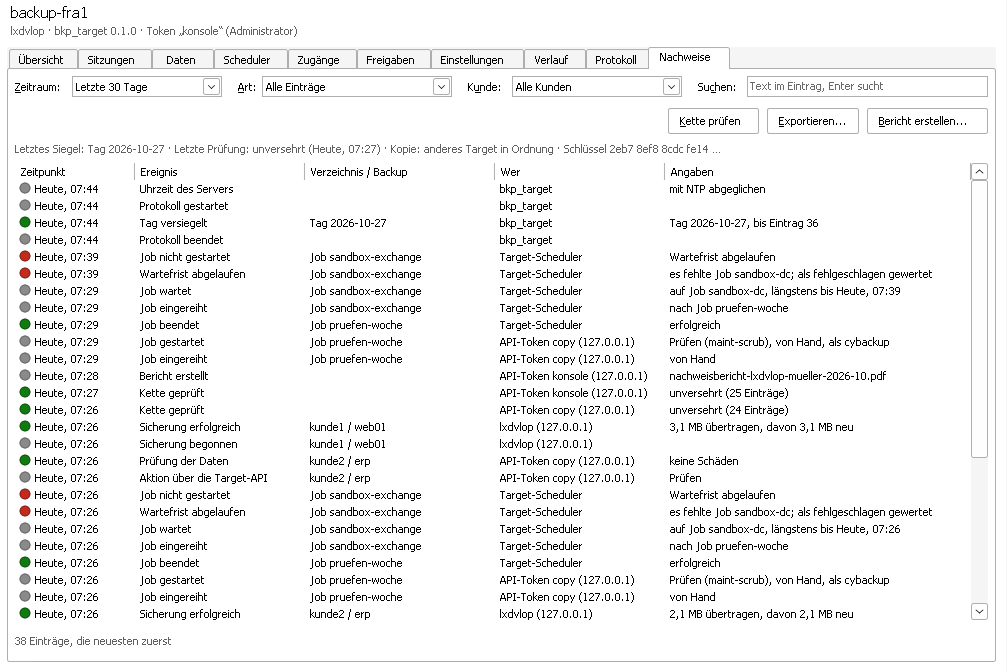
14.17 Evidence#
The tab shows the scheduler's evidence log (chapter “Evidence for NIS2 and BSI”), the newest entries first, 200 entries at a time (“Load more”). It can be filtered by period, kind (backups and mirrors, restores, check restores, jobs, interventions in the data, protection of the log), customer and a search text; a double click shows all fields of an entry. Above the list it says how the log is protected: last seal, last check, copy in a second place and the key – red if something needs attention.
- Check chain checks the chosen period on the client and names the result; a window of its own shows findings.
- Export... saves the filtered entries as CSV or JSON, next to it the signature (
.sig). - Create report... creates the evidence report of a month as a PDF, for the whole target or one customer, with signature.
bkp_target --audit-check <file> checks exports and reports on every target that knows the public key.
14.18 When the connection does not work#
| Display | Cause and remedy |
|---|---|
| The scheduler refuses connections | The service is not running, [api] enabled=yes is missing or the port is wrong. Call bkp_sched api-info on the client. |
| No answer, timeout | Firewall or wrong address. On Linux open the port, on Windows check the rule “AegisGrid Scheduler API (bkp_sched_net)”. |
| Different fingerprint | The scheduler's certificate is new, or the connection runs through a foreign machine. Compare with api-info, only then take it over. |
| Token refused | The token was removed or copied wrongly. Create a new one with api-token add and enter it under “Edit scheduler...”. |
| Header shows “read only” | The token has the role read. For changes enter a token with --role admin. |
| Destinations and profiles for viewing only | [api] allow-agent-config-write=yes is missing in bkp_sched.cfg (section “Preparing the scheduler”), or the token has the role read. |
| “Destinations” and “Profiles” greyed out | The scheduler is older and does not know these functions yet; update it. |